

Write an article with AI Writer
On this page
Open WPBot Pro → AI Writer → Write and keep One piece selected. AI Writer guides you through a few steps: Brief, Real data (only when you choose a format), a few questions, Outline, Writing and Done. Nothing is published until you publish it yourself.
1. The brief: what should we write?
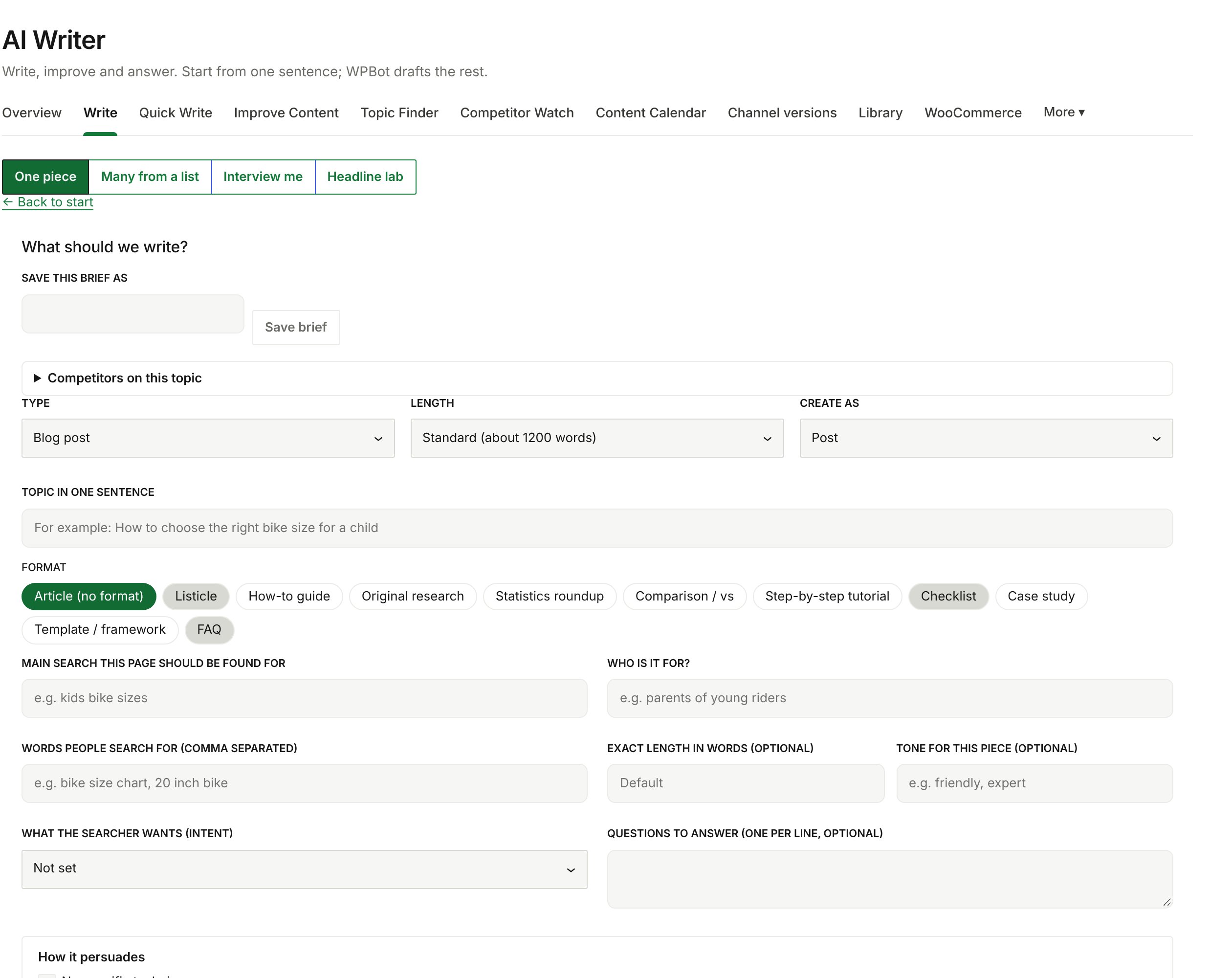
The brief: type, length, topic, format and the search the page should be found for.
| Field | What to enter |
|---|---|
| TYPE | Blog post, Help article, FAQ page, Website page, Product description, Page section, Buying guide (from your products) or Product comparison. Buying guides and comparisons need at least two of your products ticked under Sources. |
| LENGTH | Short (about 600 words), Standard (about 1200 words) or Long (about 2000 words). You can change these word counts in Settings. |
| CREATE AS | Post or Page. |
| TOPIC IN ONE SENTENCE | For example "How to choose the right bike size for a child". |
| FORMAT | Article (no format), or a format such as Checklist or How-to guide. AI Writer suggests one that fits the topic. See Article formats, real data and downloads. |
| MAIN SEARCH THIS PAGE SHOULD BE FOUND FOR | The one search you want the page to rank for. |
| WHO IS IT FOR? | The reader, for example "parents of young riders". |
| WORDS PEOPLE SEARCH FOR (COMMA SEPARATED) | Related searches to cover. |
| EXACT LENGTH IN WORDS (OPTIONAL) | Overrides the length above. |
| TONE FOR THIS PIECE (OPTIONAL) | For example "friendly, expert". Your brand voice still applies. |
| WHAT THE SEARCHER WANTS (INTENT) | Learn something (a guide), Compare options (a comparison), Buy or book (a product or service page), Find something (a short page) or Nearby (a local page). |
| QUESTIONS TO ANSWER (ONE PER LINE, OPTIONAL) | Questions the piece must answer, for example from your chatbot. |
Suggest with AI fills the empty options with one small AI request.
Below the fields:
- How it persuades chooses the reader stage, a framework and the angle. See How it persuades: reader stage, frameworks and Compare techniques.
- Who ranks for this search? Click Look it up to list the pages that rank now (it uses an AI model with web search and your own key). In Pro, Analyse these pages reads their structure and adds the points they cover to your brief, so you can write your own take.
- Competitors on this topic lists pages your competitors wrote on it, from Competitor Watch.
- Save this brief as keeps the brief to reuse it later with Start from a saved brief.
When Search numbers are available from SEO & AI Search, the brief shows searches for your keywords, Link to these pages (the article links to them where it fits) and Pages that should link to the article (you add those links after publishing).
Note
If one of your pages already targets the same search, or the topic is already planned, AI Writer stops and asks: Improve that page, Write a different angle or Continue anyway. Two pages for the same search compete with each other in Google.
2. Sources: what the article is written from
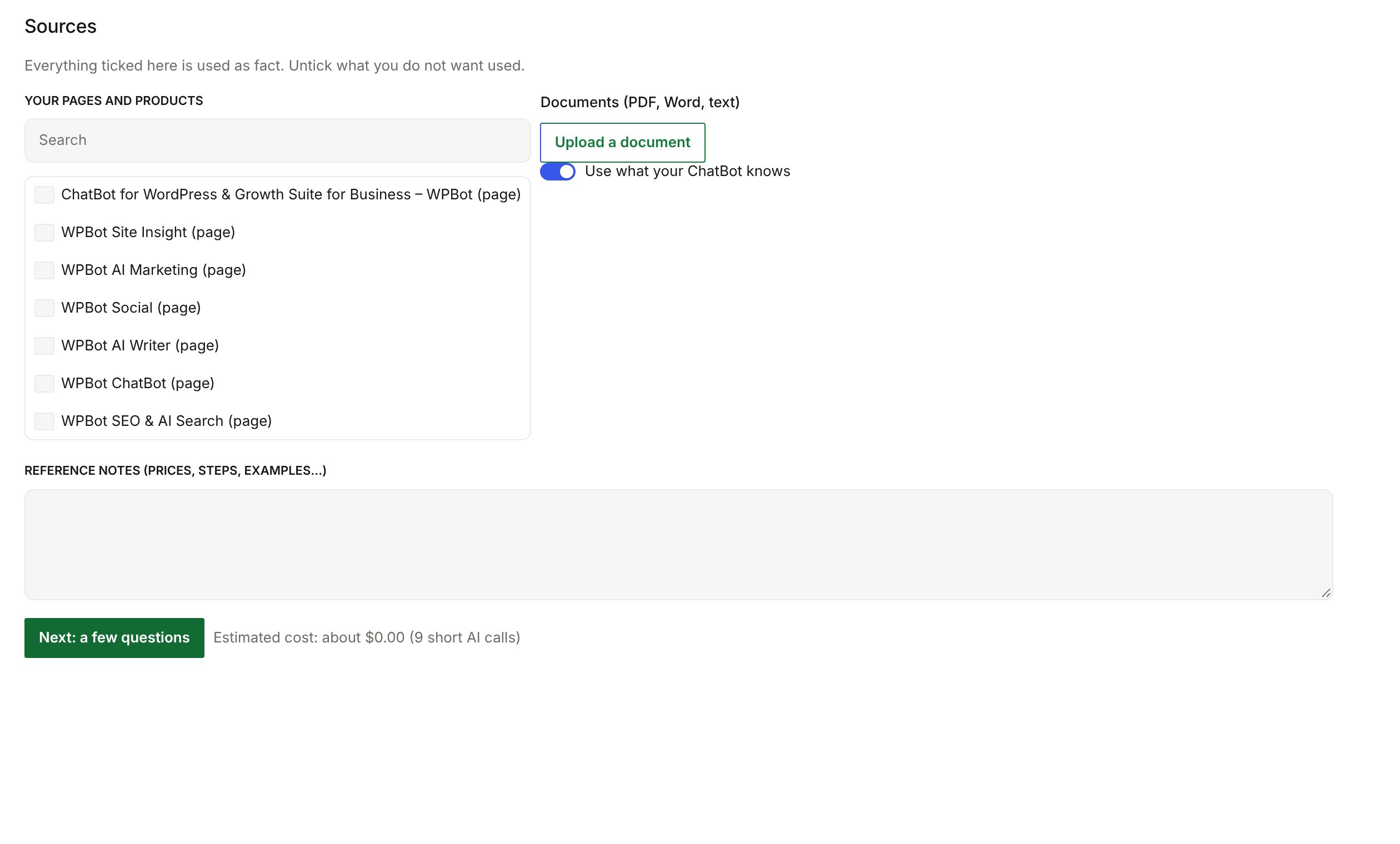
Everything ticked under Sources is used as fact.
- YOUR PAGES AND PRODUCTS: tick the pages and products to use. Search to find them.
- Documents (PDF, Word, text): Upload a document. Only its text is kept; the file is deleted.
- Use what your ChatBot knows: uses your chatbot's knowledge base. Turn it off for topics outside your business.
- REFERENCE NOTES (PRICES, STEPS, EXAMPLES…): facts only you know.
The button shows the estimated cost, for example "Estimated cost: about $0.02 (9 short AI calls)".
3. Real data (formats only)
When you pick a format, AI Writer offers places to look for facts: your knowledge, your pages, uploads, your Persuasion Kit and, in Pro, web research with sources, who ranks, your chats, orders, reviews and Search Console. You see the cost first, then tick the facts to use. Facts whose words are not in the source are left out. Anything missing is written as an [add: …] note. Skip: write without real data is always possible.
4. Make it yours
A few short questions about the topic. Your answers are what make the piece sound like you. Skip any you like. You can turn this step off in Settings ("Ask a few questions before writing").
5. Check the outline
You see the Title (or Or write your own title), the Angle and the Sections. For each section you can change the heading, what it does and the words, move it Up or Down, or Remove it. Add a section, add Frequently asked questions, or tick Start with a short summary. Regenerate outline writes a new one. "Facts that would make this better" lists what the draft will mark with placeholders. Click Write it.
6. Writing and Done
AI Writer writes section by section. You can leave the page: the work continues and you find it under Running jobs on the Overview.
When it is finished, Your draft is ready shows the word count against your target and what to look at: Personal touches to add, Claims to check, Sentences that may sound like AI, images to replace and format checks. Click Open the draft to edit it in WordPress.
Tip
After you publish, open the AI Writer sidebar and click Add to chatbot knowledge, so your chatbot can answer with the new page. Then check the page in SEO & AI Search.
Availability
Writing one piece is in every edition, including WPBot Free. Save this brief as, Competitors on this topic, Analyse these pages, the Pro article formats and the Pro real-data sources (web research, who ranks, chats, orders, reviews and Search Console) are AI Writer Pro, included in Starter, Professional and Master.
Was this article helpful?
Sorry about that. Get help another way:











