

Create, test and improve an AI Action
On this page
Open WPBot Pro → ChatBot → AI Actions. Click Add New Action and pick a template, or open an action under Saved Actions to edit it.
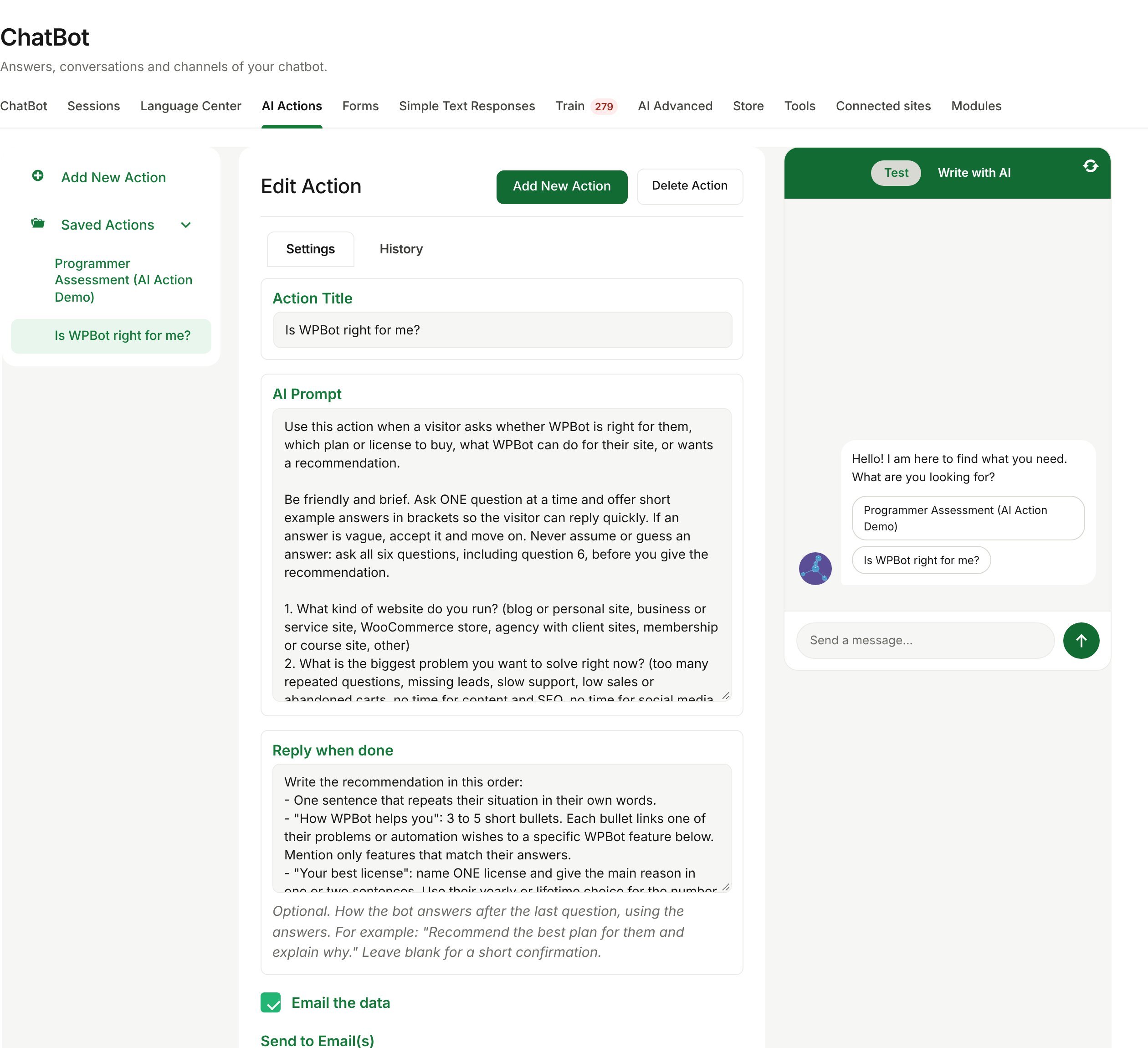
Editing an AI Action, with the Live AI Playground on the right.
The action's settings
| Field | What to enter |
|---|---|
| Action Title | The name visitors see on the button, for example "Get a quote". |
| AI Prompt | What the AI should do, step by step: the goal, the questions in order, and rules. |
| Reply when done | Optional. How the bot answers after the last question, using the answers. For example: "Recommend the best plan for them and explain why." Leave blank for a short confirmation. |
| Email the data | Sends the collected answers by email. Send to Email(s): comma-separated addresses; leave blank to use the default admin email. |
| Webhook URL (optional) | The collected data is also sent here as JSON (HTTPS only), for example to Zapier or Make. |
Click Save Settings to keep your changes. Delete Action removes the action.
Write a good prompt
The templates follow a pattern that works:
- The role and the goal: "You are the booking assistant of a dental clinic. Collect the details for an appointment request."
- Rules: "Ask exactly one question per turn. Wait for the answer before the next question."
- The questions, numbered: "Step 1: What is your full name? Step 2: What is your email address? Step 3: …"
- What to do with unclear answers: "If the date is in the past, ask again."
Ask for the email or phone number early, so you can follow up even if the visitor leaves halfway.
Write with AI
In the Live AI Playground, open Write with AI and Describe the action, for example "Ask visitors a few questions about their website and needs, then recommend one of our plans." The AI writes the title, the questions and the reply, using your Business Context when you have one.
- Write action drafts a new action; then Create action adds it, or Replace in open action puts it into the action you have open.
- Improve open action changes the open action as you describe, for example "Also ask for their budget".
Nothing is saved until you click Save Settings.
Test it
Open the Test tab of the Live AI Playground and go through the action as a visitor would. Refresh Chat starts again. Test conversations use your AI provider, so they cost a little, like real ones.
Note
AI Actions need a connected AI provider. Without one, the screen says that no AI connection is active.
History
Open an action and its History tab to see the entries visitors completed, each with the answers they gave (Data) and the Date, and an action to delete an entry. Save the action with a title first. Entries can contain personal data; treat them like any customer data (Chatbot data and privacy).
Put it live
Add the action to the start menu (Items tab, AI Actions group), link a Chat Icon Message to it, or use it in a Click to Chat button: see AI Actions: let the chatbot qualify leads and collect details. If the AI says it could not use an answer, the message comes from AI Action – invalid answer message in the Language Center: change every text the chatbot says.
Availability
In every edition, including WPBot Free.
Was this article helpful?
Sorry about that. Get help another way:











