

Email Setup: where chatbot emails go and who sends them
Open WPBot Pro → ChatBot, tab Basics, and expand Email Setup.
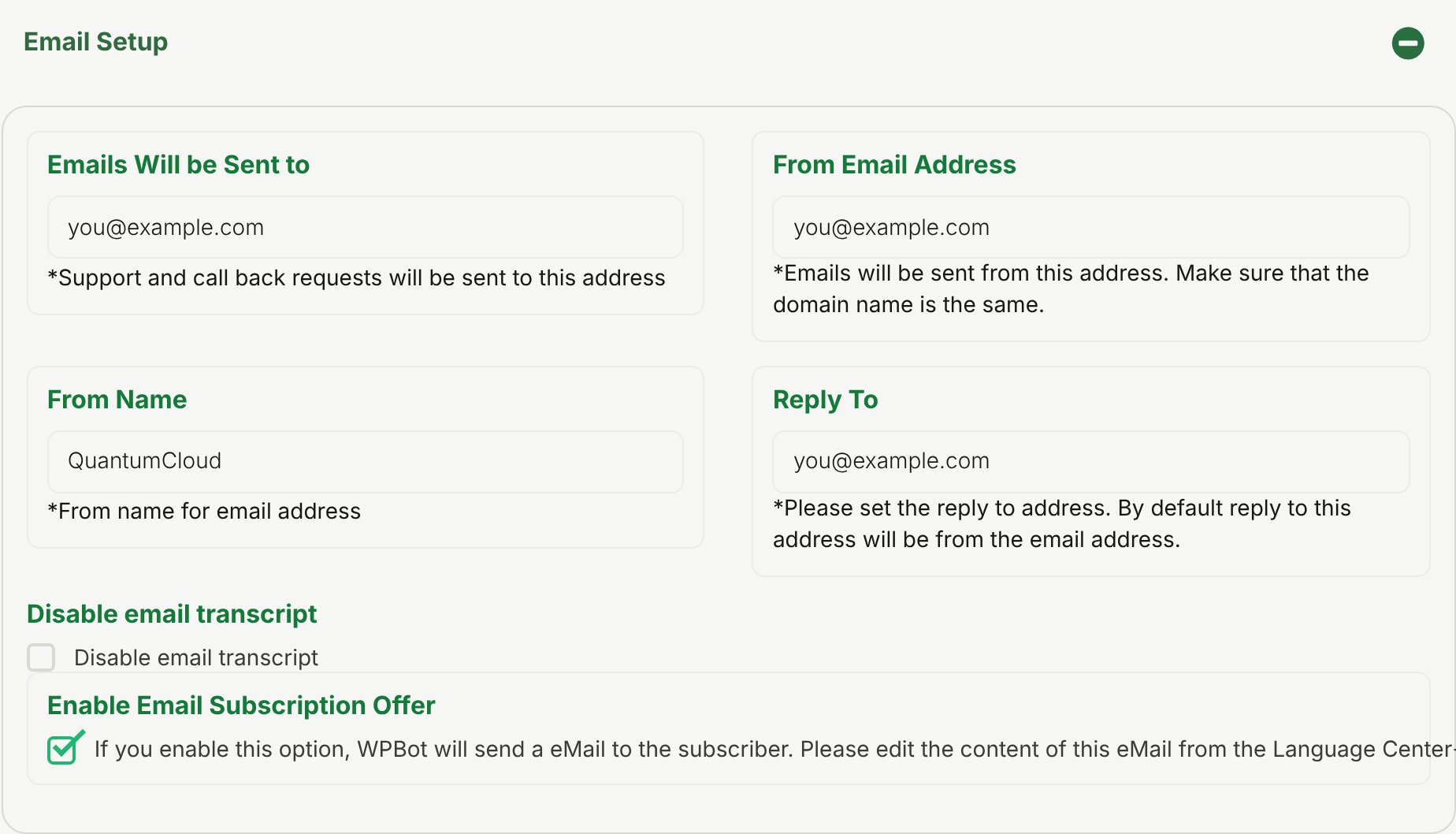
Email Setup in the Basics tab.
| Setting | What to enter |
|---|---|
| Emails Will be Sent to | The address that receives support and callback requests from the chat. Chat Sessions, AI Insight and Voice Messages also send their emails here. |
| From Email Address | The sender of chatbot emails. Use an address on the same domain as your site, for example [email protected], or many emails end up in spam. |
| From Name | The sender name, for example your business name. |
| Reply To | Where replies go. Empty = the From address. |
| Disable email transcript | Stops the chat window from offering visitors a copy of their conversation by email. |
| Enable Email Subscription Offer | Sends new email subscribers an email. Put a coupon, an ebook or another offer in it to get more sign-ups. Edit its text in the Language Center, Email Subscription tab. |
Save the settings at the bottom of the page.
Email Setup and Notifications
AI / Settings → Notifications decides how often staff emails go out (instantly, in a daily or weekly digest, or off) and, once you save it, to which addresses. Until you save the Notifications page, each feature sends to the address it always used, such as Emails Will be Sent to. Emails to visitors, such as transcripts and the subscription offer, are always sent right away. See Notification emails and digests.
Tip
Send leads to the inbox someone actually watches, and set new leads to Instantly in Notifications. A quick reply wins the sale.
If emails do not arrive
WPBot sends email through WordPress. Many hosts deliver WordPress email poorly. Use an SMTP plugin or an email service, and check the error log for "Email" entries. See Chatbot emails do not arrive.
Availability
In every edition. WPBot Free has the same email fields on its Basics tab. Chat Sessions emails, AI Insight and Voice Messages depend on your edition.
Was this article helpful?
Sorry about that. Get help another way:











