

Connect YouTube Shorts
On this page
YouTube Shorts uses WPBot's Google connection, the same one AI Writer and SEO & AI Search use. WPBot asks Google for permission to upload videos, nothing else on YouTube. Open WPBot Pro → Social → Accounts and click Connect on the YouTube Shorts card.
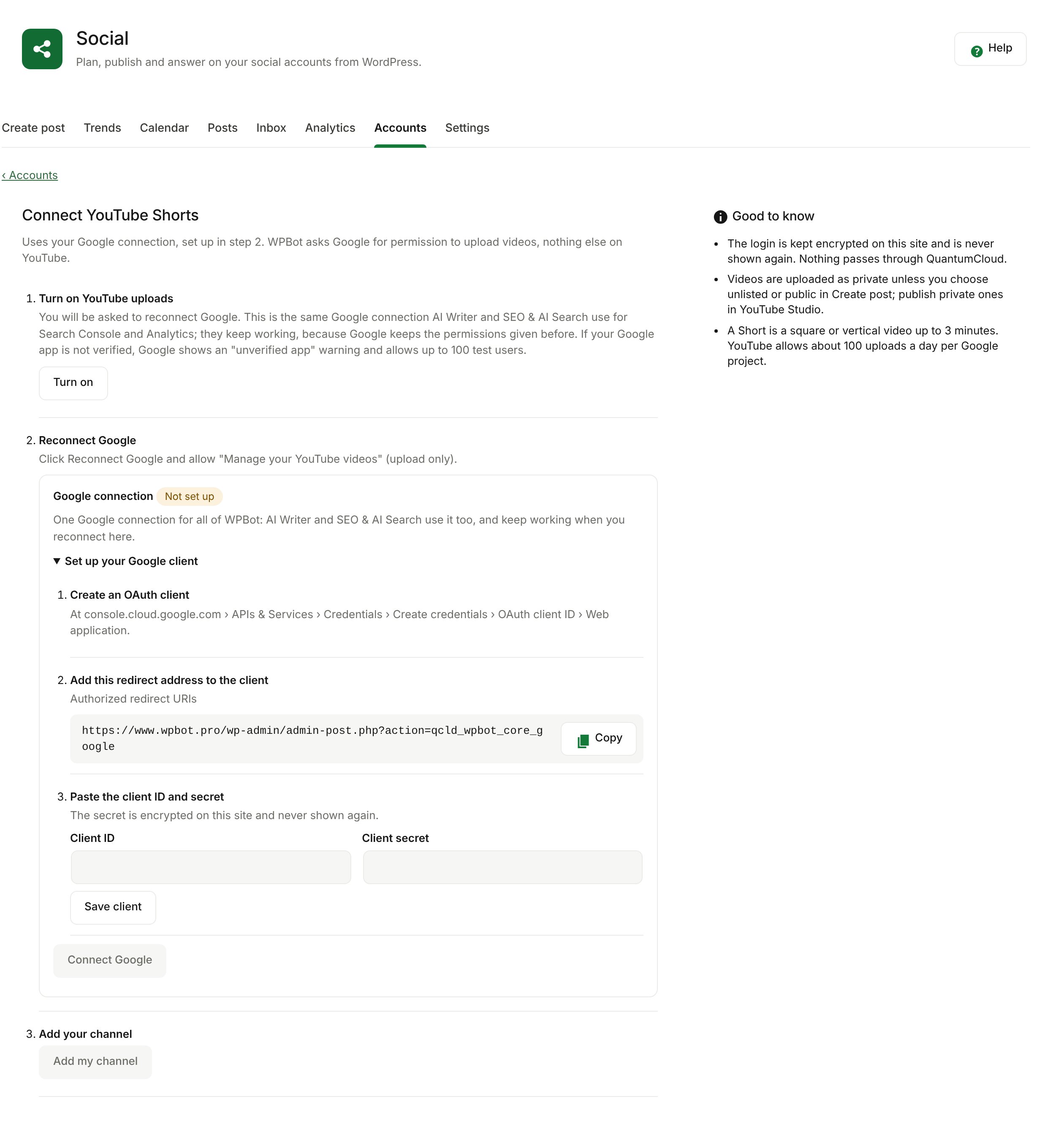
Connect YouTube Shorts through your Google connection.
Step 1: Turn on YouTube uploads
Click Turn on. You will be asked to reconnect Google. AI Writer and SEO & AI Search keep working, because Google keeps the permissions given before.
Step 2: Reconnect Google
If Google is connected, click Reconnect Google and allow Manage your YouTube videos (upload only).
If the Google connection is Not set up, create it first:
- At console.cloud.google.com, open APIs & Services → Credentials → Create credentials → OAuth client ID and choose Web application.
- Add the redirect address shown on the screen under Authorized redirect URIs.
- Paste the Client ID and Client secret, click Save client, then Connect Google.
Note
If your Google app is not verified, Google shows an "unverified app" warning and allows up to 100 test users.
Step 3: Add your channel
Click Add my channel.
Uploading Shorts
- A Short is a square or vertical video up to 3 minutes. Add it in Create post with Add a video.
- YouTube visibility: Private (you publish it in YouTube Studio) is the default; you can choose Unlisted or Public.
- YouTube allows about 100 uploads a day per Google project.
Turning it off
Turn YouTube off stops uploads. The permission stays on the Google login until you reconnect Google or remove it in your Google account.
Availability
Master only.
Was this article helpful?
Sorry about that. Get help another way:











