

Connect a Telegram channel
On this page
Posts go out through a Telegram bot that is an admin of your channel. WPBot Social only posts; it does not change the bot's settings. Open WPBot Pro → Social → Accounts and click Connect on the Telegram channel card.
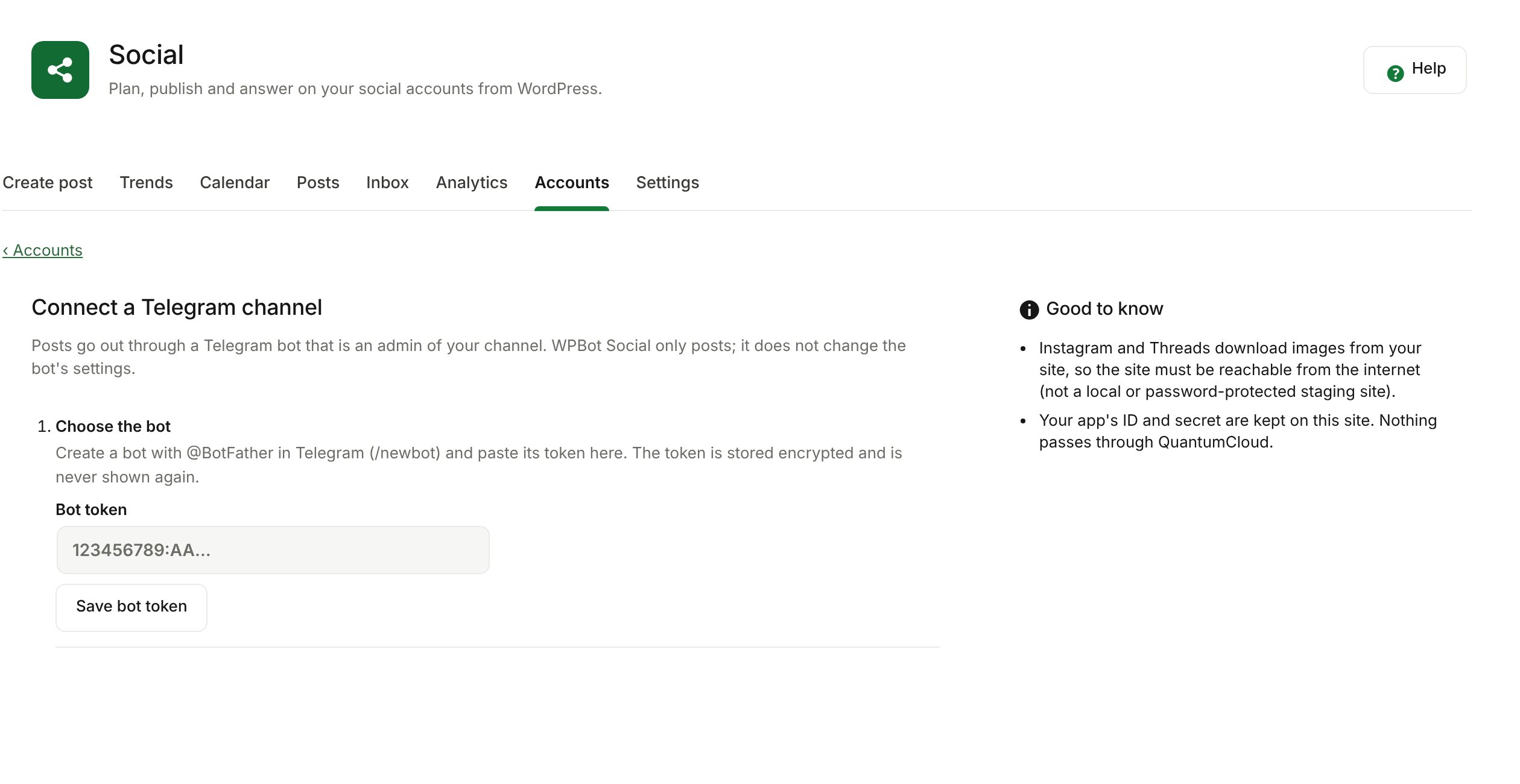
Connect a Telegram channel with a bot token.
Steps
- Choose the bot. In Telegram, open @BotFather, send
/newbotand follow the steps. Paste the token it gives you in Bot token and click Save bot token. The token is encrypted and never shown again. If the ChatBot's Telegram channel already has a bot, Social can use it; add a token here only to post with a different bot. - Add the bot to your channel as an admin. In Telegram, open Channel → Administrators → Add admin and allow Post messages.
- Enter the channel as
@usernameor its numeric id, and click Connect channel.
Good to know
- Telegram cannot look a channel post up afterwards. If WPBot cannot tell whether a post went out, the post shows Check and confirm in Posts: look at the channel and click It went out, or retry. WPBot never posts twice on its own.
- If you replace or remove the bot token, channels that post through the old bot need connecting again; their posts wait until then.
- The ChatBot's Telegram channel (for chatting with visitors) is separate and is not affected.
Availability
In every edition, including WPBot Free.
Was this article helpful?
Sorry about that. Get help another way:











