

Limit chatbot AI answers per user role
On this page
Rate limits stop one person (or a bot) from running up your AI bill. They are set per WordPress user role, plus a line for visitors who are not logged in.
Set it up
- Open AI / Settings → Spending and limits and scroll to ChatBot rate limits.
- Tick ChatBot rate limits.
- For each role, set MOST ANSWERS and PER (HOURS). For example, 30 answers per 1 hour for Visitors (not logged in). Leave a limit empty or 0 for no limit.
- Write the MESSAGE WHEN THE LIMIT IS REACHED, for example "You've asked a lot of questions! Please email us at …, or come back in an hour."
- Click Save settings.
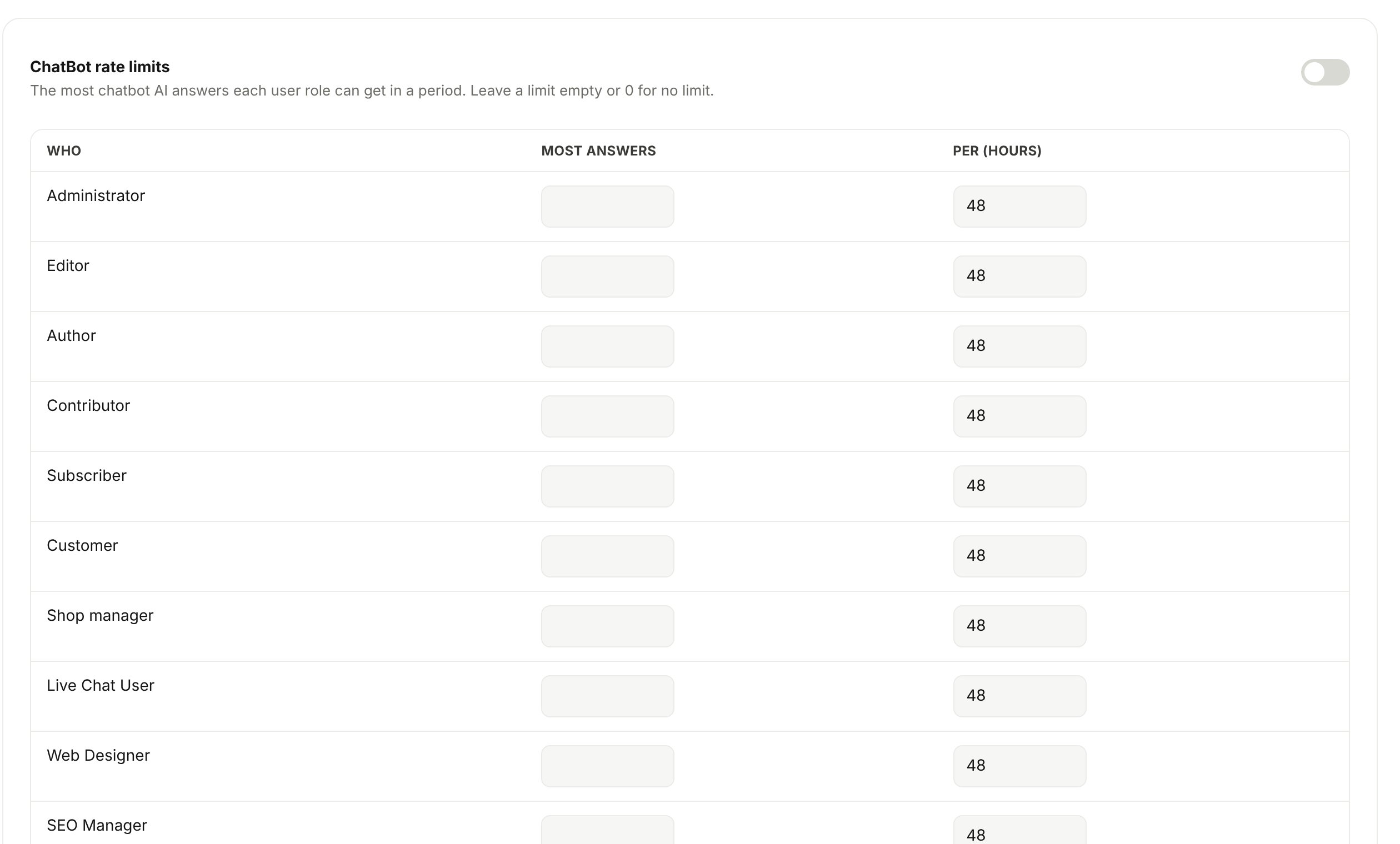
One line per user role, plus visitors who are not logged in.
The list shows every role on your site, including roles added by other plugins (for example Customer and Shop manager from WooCommerce).
Good starting values
| Who | Most answers | Per (hours) |
|---|---|---|
| Visitors (not logged in) | 30 | 1 |
| Customer / Subscriber | 60 | 1 |
| Staff roles | empty (no limit) |
Real visitors rarely ask more than 10 questions in an hour, so these limits only catch abuse.
Availability
In every edition, including WPBot Free.
Was this article helpful?
Sorry about that. Get help another way:











