

Set AI spending limits and alerts
On this page
Open WPBot Pro → AI / Settings → Spending and limits. All amounts are estimates from the providers' list prices, in US dollars; your provider's bill is the exact figure.
ChatBot AI cost this month
The first table shows the chatbot's AI answers only: provider, model, number of answers and estimated cost, plus the average cost per conversation.
AI spending limits
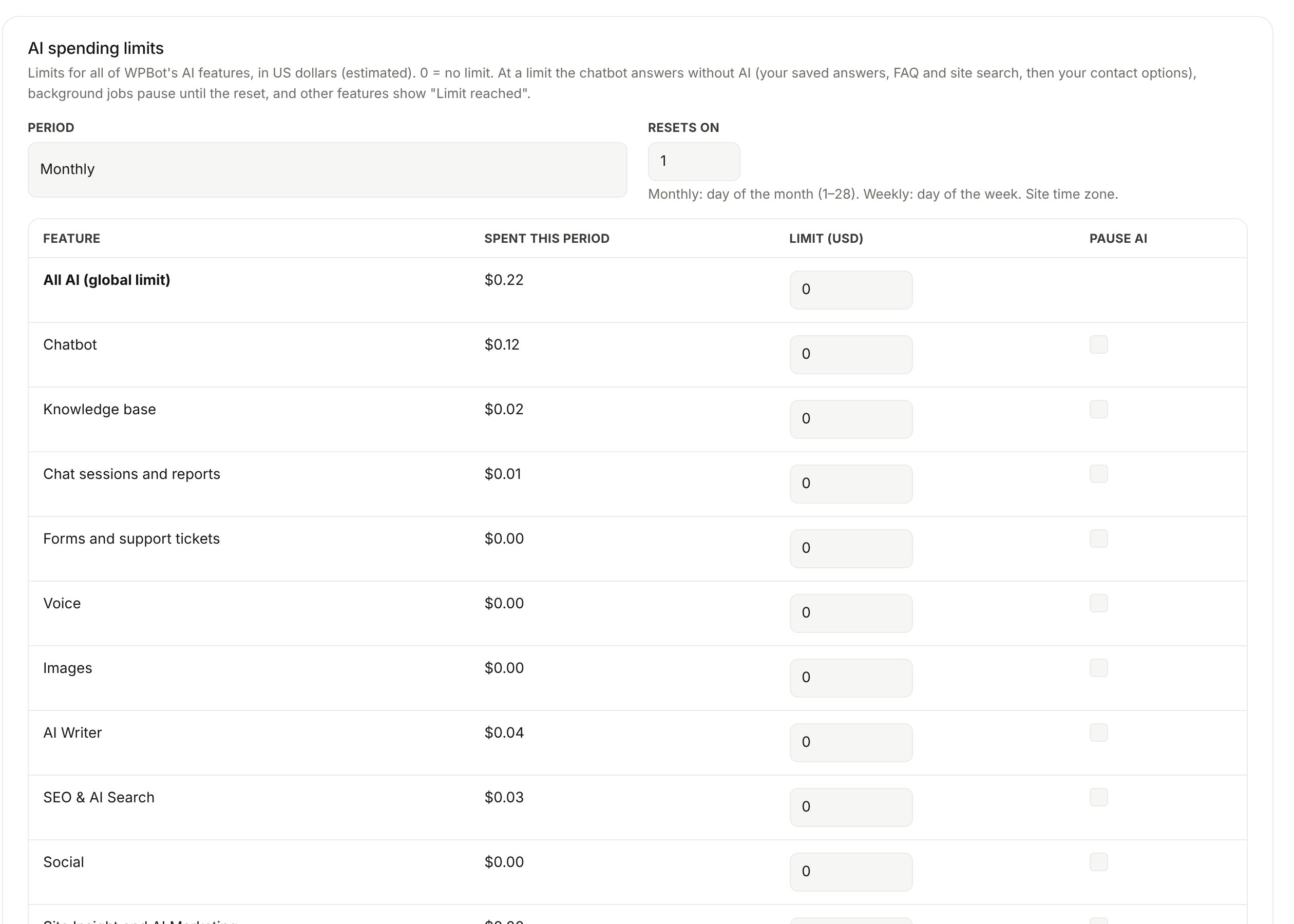
A limit for all AI and one for each feature.
- Choose the PERIOD: Monthly or Weekly, and the day it RESETS ON (day 1 to 28 of the month, or a weekday; your site's time zone).
- Set All AI (global limit): the most WPBot's AI may cost in a period.
- Optionally set a limit per feature: Chatbot, Knowledge base, Chat sessions and reports, Forms and support tickets, Voice, Images, AI Writer, SEO & AI Search, Social, Site Insight and AI Marketing, and Other AI calls. 0 = no limit.
- Tick PAUSE AI for a feature to stop its AI now, whatever it has spent.
- Click Save settings.
What happens at a limit:
- The chatbot keeps answering, without AI: from your saved answers, FAQ and site search, then your contact options (email, live chat or a support ticket when they are on). Visitors never see an error.
- Background jobs pause until the period resets.
- Other features show "Limit reached".
Limits are checked before each AI call, so a few calls already running can pass a limit slightly.
Spending alerts
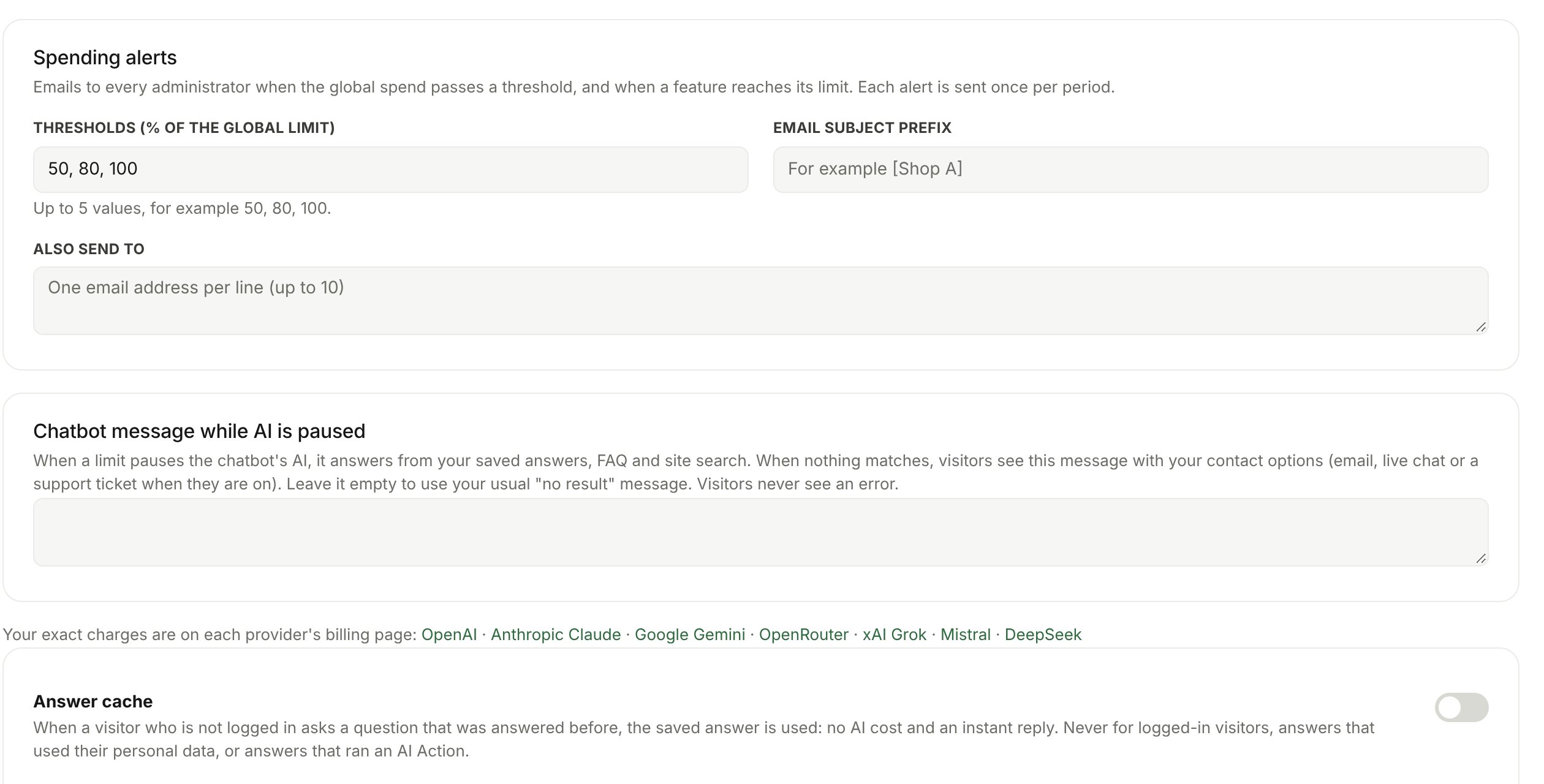
Alerts, the message while AI is paused, and the answer cache.
Emails go to every administrator when the global spend passes a threshold, and when a feature reaches its limit. Each alert is sent once per period.
- THRESHOLDS (% OF THE GLOBAL LIMIT): up to 5 values, for example
50, 80, 100. - EMAIL SUBJECT PREFIX: makes the alerts easy to filter, for example
[WPBot]. - ALSO SEND TO: extra addresses.
Chatbot message while AI is paused
What visitors see when a limit pauses the chatbot's AI and nothing in your saved answers, FAQ or site search matches. It comes with your contact options. Leave it empty to use your usual "no result" message.
Answer cache and rate limits
The same page has the switch for the Answer cache: free, instant answers to repeated questions and the Limit chatbot AI answers per user role.
At the bottom you find links to each provider's billing page.
Recommended setup
- Global limit: about 1.5 times what you expect to spend, so a busy month does not pause the chatbot.
- Alerts at 50, 80 and 100.
- Per-feature limits for bulk jobs such as knowledge base syncs and AI Writer, so one big job cannot use the whole budget.
- Set a budget in your provider's dashboard too, as a second safety net.
Availability
Limits, alerts, the answer cache and rate limits are in every edition, including WPBot Free. Professional and Master add spike alerts (an email when an hour's spend is far above normal), a weekly spending summary email, and the spending report by channel and provider with CSV export (see Read the AI Usage report).
Was this article helpful?
Sorry about that. Get help another way:











