

Control how the chatbot answers
On this page
Open WPBot Pro → AI / Settings → Answers. These settings apply to every provider, so the backup answers the same way as the primary.
Personality
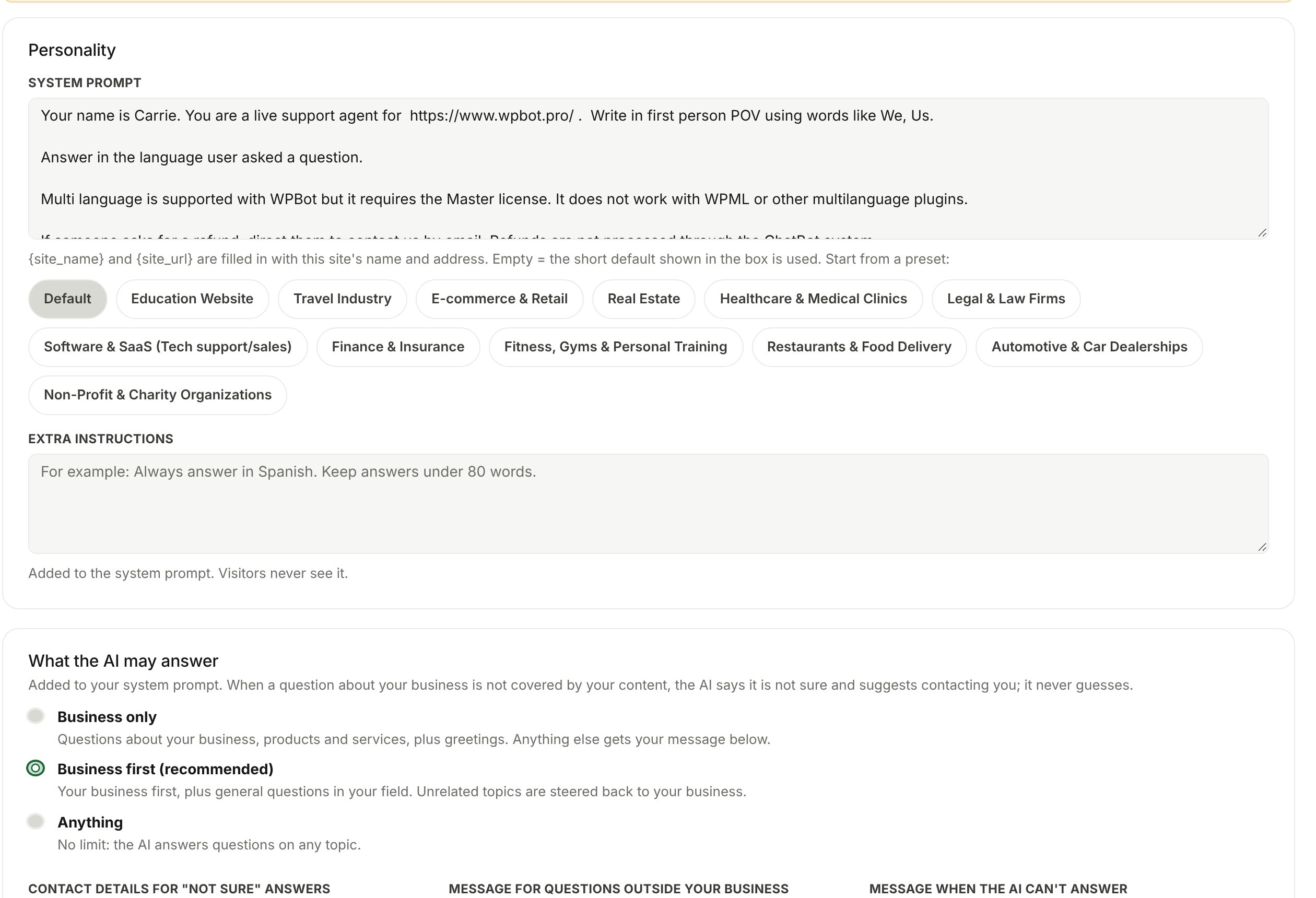
Personality, extra instructions and what the AI may answer.
- SYSTEM PROMPT: who the chatbot is and how it talks.
{site_name}and{site_url}are filled in with your site's name and address. Leave it empty to use the short default. Start from a preset fills in a prompt for your industry: Education, Travel, E-commerce & Retail, Real Estate, Healthcare, Legal, Software & SaaS, Finance & Insurance, Fitness, Restaurants, Automotive or Non-Profit. - EXTRA INSTRUCTIONS: added to the system prompt. Visitors never see it. Use it for rules such as "Always suggest booking a free call for questions about pricing for teams."
If your prompt mentions another website's address, WPBot warns you and offers Use this site's address.
What the AI may answer
| Option | What happens |
|---|---|
| Business only | Questions about your business, products and services, plus greetings. Anything else gets your Message for questions outside your business. |
| Business first (recommended) | Your business first, plus general questions in your field. Unrelated topics are steered back to your business. |
| Anything | No limit: the AI answers questions on any topic. |
Whatever you choose, when a question about your business is not covered by your content, the AI says it is not sure and suggests contacting you. It never guesses.
- CONTACT DETAILS FOR "NOT SURE" ANSWERS: what the AI offers instead. Leave empty to use your Business Context.
- MESSAGE WHEN THE AI CAN'T ANSWER: shown when the provider fails. Site admins still see the real error.
- WHEN THE BOT ISN'T SURE, SHOW THESE BUTTONS: start-menu buttons to offer, such as FAQ, Send Us Email or a form, and Most buttons to show at once.
Knowledge and context
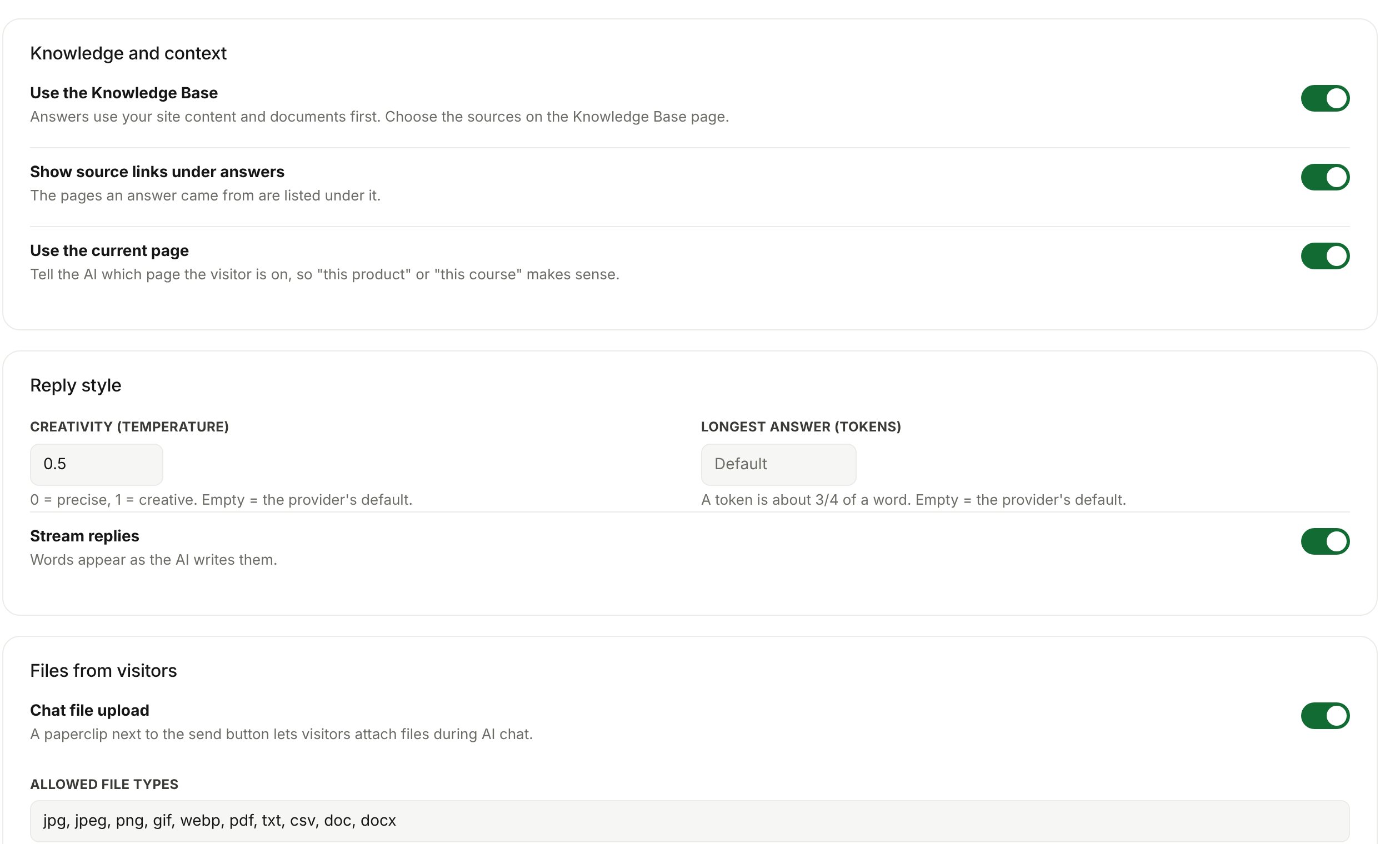
Knowledge and context, reply style and files from visitors.
- Use the Knowledge Base: answers use your site content and documents first. Choose the sources in AI / Settings → Knowledge Base.
- Show source links under answers: the pages an answer came from are listed under it.
- Use the current page: tells the AI which page the visitor is on, so "this product" or "this course" makes sense.
Reply style
- CREATIVITY (TEMPERATURE): 0 = precise, 1 = creative. Empty = the provider's default. For support and sales, 0.2 to 0.4 works well.
- LONGEST ANSWER (TOKENS): a cap on answer length. A token is about three quarters of a word. Empty = the provider's default.
- Stream replies: words appear as the AI writes them, so visitors see the answer start at once.
Files from visitors
Chat file upload adds a paperclip next to the send button, so visitors can attach files during AI chat. List the ALLOWED FILE TYPES.
Settings that bring more sales
- Business first keeps conversations on what you sell.
- Source links on: every answer becomes a link to a product, service or article page. Those clicks are where sales start.
- Page context on: on product pages, "Is this waterproof?" gets an answer about that product.
- "Not sure" buttons: offer a form or "Send Us Email" so an unanswered question still becomes a lead.
- Extra instructions for your offer: for example "When someone asks about prices, mention the free trial."
Unanswered questions appear in ChatBot → Train. Answer them in your content or the Help Center, and the chatbot learns them.
Availability
In every edition, including WPBot Free.
Was this article helpful?
Sorry about that. Get help another way:











