

Choose your AI provider and add your key
On this page
Open WPBot Pro → AI / Settings → Providers.
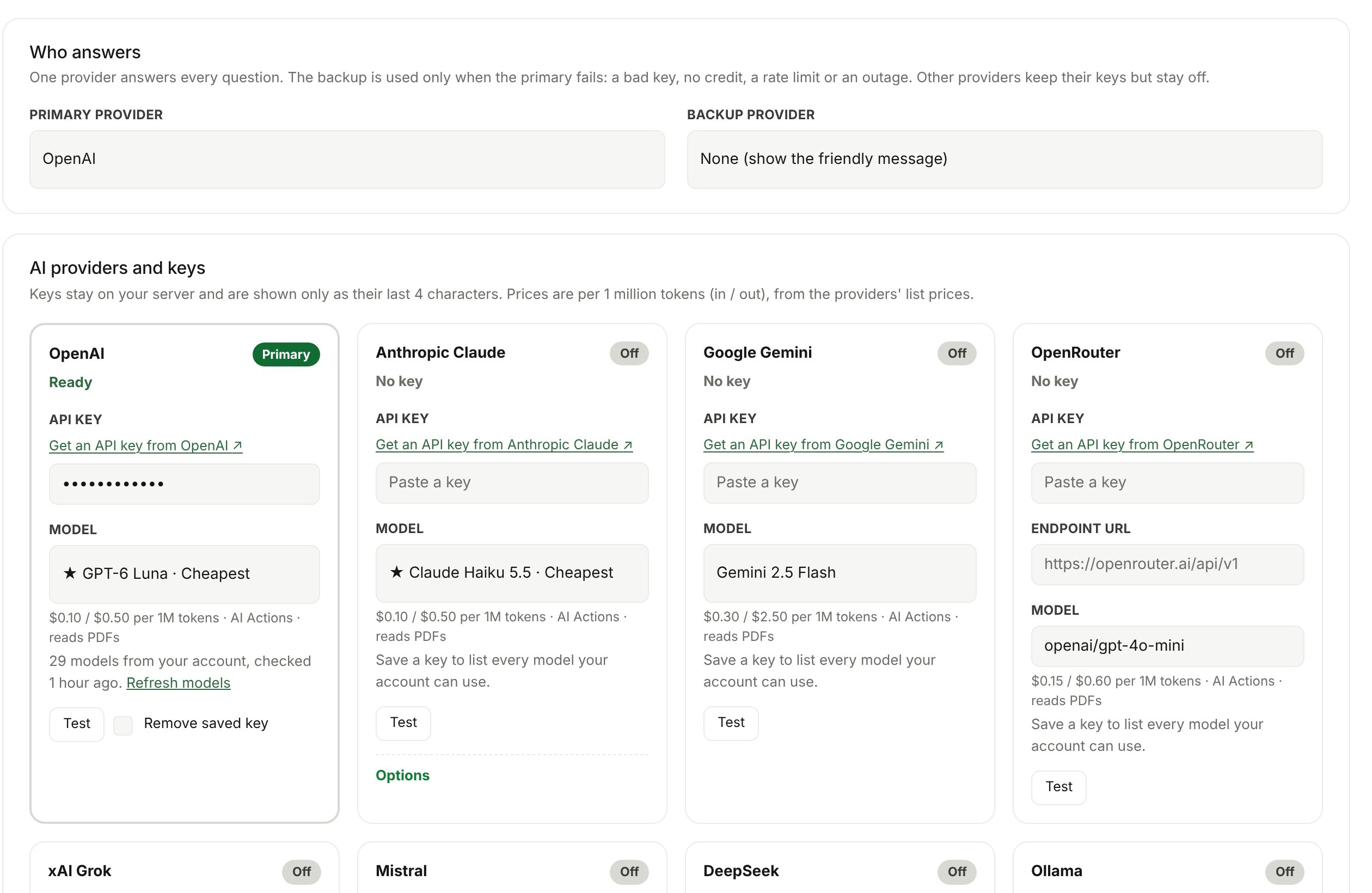
Who answers, and the card for each AI provider.
Supported providers
OpenAI, Anthropic Claude, Google Gemini, OpenRouter, xAI Grok, Mistral, DeepSeek and Ollama (your own server). OpenRouter gives you access to many more models through one key.
Add a key
- Find the provider's card under AI providers and keys. Each card has a Get an API key from … link to the provider's dashboard.
- Paste the key into API KEY.
- Click Save settings. The card's badge changes from No key to Ready, and the MODEL list fills with every model your account can use.
- Click Test to check that the key works.
Keys stay on your server and are shown only as their last 4 characters. They are never sent to the browser or written to logs. To remove a key, tick Remove saved key and save.
Provider options:
- Anthropic Claude: click Options to add a Voyage AI key, used for the knowledge base's search vectors.
- xAI Grok: Options has a Grok collection and management key, if you use Grok collections.
- OpenRouter: set the ENDPOINT URL (normally
https://openrouter.ai/api/v1) and type the model name, for exampleopenai/gpt-4o-mini. - Ollama: set your SERVER URL and the MODEL installed on that server. There is no cost per answer.
Choose who answers
Under Who answers, pick the PRIMARY PROVIDER. One provider answers every question. Other providers keep their keys but stay off, unless you choose one as the backup. See Set a backup AI provider.
None (AI off) turns AI answers off. The chatbot then answers from its start menu, FAQ, simple text responses and site search.
Choose a model
Each MODEL list starts with three starred suggestions:
| Label | Use it for |
|---|---|
| ★ Best value | The default choice for most sites: good answers at a low price |
| ★ Best quality | Complex products, long answers, important sales conversations |
| ★ Cheapest | Very high volume, or short questions (see Use a cheaper model for short questions) |
Under the list you see the model's price per 1 million tokens (in / out) and what it can do, for example AI Actions and reads PDFs. A token is about three quarters of a word. Refresh models reloads the list from your account.
One key for every tool
Your other AI features (writing, SEO, social and more) use these keys too, unless you give a feature its own keys in its settings. The spend summary at the top of the page shows what each feature has spent this period.
Tips
- Start with a Best value model. Move to Best quality only if answers are not good enough after you improved your content and Business Context.
- Set a monthly budget with your provider as well as in WPBot. If the provider stops you (for example "enforced spend limit"), WPBot records it in the error log and the backup provider takes over.
Availability
Every provider and option on this screen is in every edition, including WPBot Free.
Was this article helpful?
Sorry about that. Get help another way:











