

Caching, optimisation plugins and CDNs (WP Rocket, LiteSpeed and more)
On this page
WPBot is built for cached sites: the chat fetches its visitor token when it opens and does not depend on nonces in the page, so pages can stay in a full-page cache for days. A few optimisation features, though, change scripts in ways that break the chat.
The rules
| Settings | |
|---|---|
| Safe to keep on | Page caching for logged-out visitors, GZIP or Brotli compression, browser caching, a CDN, an object cache, lazy-loading images |
| Never cache | Pages for logged-in users, admin-ajax.php and REST API responses (/wp-json/). Chat replies and visitor details would be shared between visitors |
| Exclude WPBot from | Combine JS, Delay JavaScript until user interaction, Remove unused CSS. They break proactive greetings, auto-open and the chat's styling |
| Pick one minifier | Either WPBot's own asset cache, or your caching plugin's minify. Not both on WPBot's files |
Let WPBot handle it: the asset cache
Open WPBot Pro → ChatBot → Performance and tick Enable WPBot asset cache. WPBot then serves smaller copies of its own files and tells supported plugins to leave them alone.
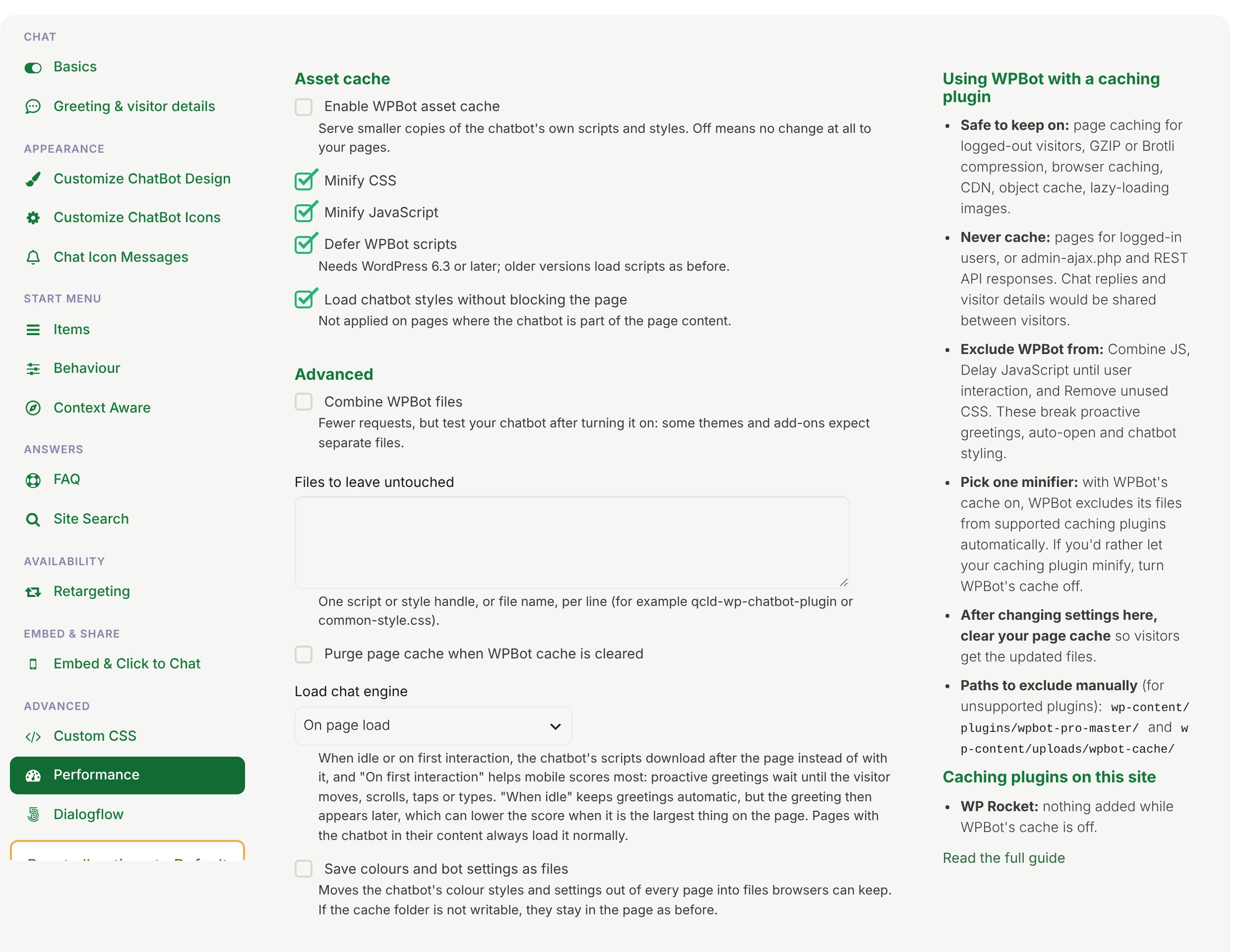
The asset cache, its advanced options and the notes for your caching plugin.
| Plugin | While WPBot's asset cache is on |
|---|---|
| WP Rocket | WPBot's files are excluded from minify and combine, defer, delay JavaScript, asynchronous CSS and remove unused CSS |
| LiteSpeed Cache | Excluded from JS and CSS minify and combine, defer and delay, guest mode, and the unused and critical CSS safelists |
| Autoptimize | Excluded from JS and CSS aggregation (Autoptimize has no page cache) |
| W3 Total Cache | Excluded from JS and CSS auto-minify |
| SiteGround Speed Optimizer | Excluded from minify, combine and asynchronous JS |
| WP Super Cache | Page cache only: nothing to exclude |
| WP Fastest Cache | Its minify options cannot be told to skip files: exclude the two paths below by hand, or leave its minify off |
The Caching plugins on this site box on the same screen says what WPBot does for each plugin it finds. While the asset cache is off, WPBot adds nothing to them.
Other options on the Performance screen:
- Purge page cache when WPBot cache is cleared: clears the supported plugins' page caches when you clear WPBot's asset cache.
- Files to leave untouched: script or style handles (or file names), one per line, that the asset cache must not change.
- Combine WPBot files: fewer requests, but test the chat afterwards; some themes and add-ons expect separate files.
- Load chat engine (WPBot Pro): On page load, When idle or On first interaction. "On first interaction" helps mobile scores most, but proactive greetings then wait until the visitor moves, scrolls, taps or types.
Exclude WPBot by hand
For plugins WPBot does not support, or if you prefer your plugin's minify, exclude these two folders (the Performance screen shows the exact paths for your site under Paths to exclude manually):
wp-content/plugins/wpbot-pro-master/
wp-content/uploads/wpbot-cache/
Clearing caches
- When you save a WPBot setting, WPBot clears the page caches of WP Rocket, LiteSpeed Cache, W3 Total Cache, WP Super Cache, Autoptimize, SiteGround Speed Optimizer, WP Fastest Cache, Hummingbird, Breeze, Cache Enabler, Nginx Helper, WP-Optimize and WP Engine, plus Redis or Memcached.
- After you update WPBot, clear your caches yourself so visitors get the new scripts.
- A CDN (Cloudflare and others) and your host's server cache are not cleared by WPBot. Clear them after updates and design changes.
CDNs
- Let the CDN cache WPBot's script, style and image files; never
admin-ajax.phpor/wp-json/. - Turn off CDN features that delay or rewrite JavaScript for WPBot's files (for example Cloudflare's Rocket Loader), for the same reason as "Delay JavaScript" above.
- Nginx: nginx ignores
.htaccess, so the long browser caching rules of WPBot's cached files do not apply there. The Status box on the Performance screen shows the lines to add to your nginx configuration.
When the asset cache cannot work
- Cache folder not writable: WPBot keeps serving its original files, and a notice explains how to fix the folder permissions of
wp-content/uploads/wpbot-cache/. SCRIPT_DEBUGis on, orWPBOT_ASSET_CACHE_DISABLEis set inwp-config.php: the original files are served.
Availability
The asset cache and the automatic exclusions are in every edition, including WPBot Free. Load chat engine and Save colours and bot settings as files come with every WPBot Pro edition. The plugin folder is wpbot-pro-master in Master; other editions and WPBot Free use their own folder name, shown on the Performance screen.
Was this article helpful?
Sorry about that. Get help another way:











