

Import and export contacts
Open WPBot Pro → AI Marketing → Contacts and click Import.
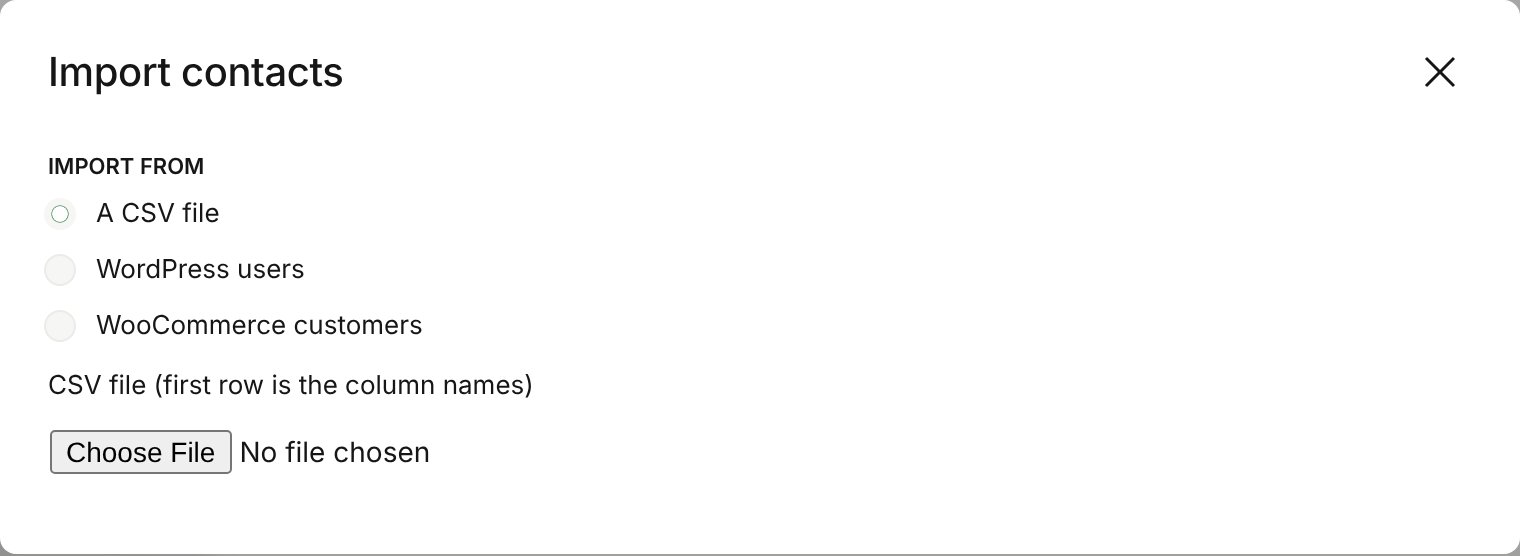
Import contacts from a CSV file, WordPress users or WooCommerce customers.
Import from
- A CSV file (first row is the column names)
- WordPress users
- WooCommerce customers (when WooCommerce is active)
Map the columns
For a CSV file, WPBot shows how many rows it found and an example from each column. Choose what each column holds under Import as: Email, First name, Last name, Full name, Phone, Company, Website, Language, Lists (comma separated), Tags (comma separated), a Custom field with its Field key, or Do not import. Choose the email column first.
Consent
Tick These people agreed to receive marketing emails from us only when it is true:
- Ticked: they are added as subscribers. People who unsubscribed before stay unsubscribed.
- Not ticked: they are added as leads and do not receive marketing emails until they subscribe.
Warning
Importing a bought or scraped list as subscribers breaks anti-spam laws and ruins your sender reputation. Import people without consent as leads.
Lists and tags
Add everyone to these lists and Tag everyone with label the whole import, for example "Trade show 2026".
Click Import and keep the window open while it runs. The result shows how many were new, updated and skipped. Contacts with an email that already exists are updated, never duplicated.
Export
Click Export CSV to download your contacts.
Availability
In every edition, including WPBot Free.
Was this article helpful?
Sorry about that. Get help another way:











