

Public docs server for your customers’ AI assistants
On this page
Your customers ask AI assistants about your product. The public docs server lets those assistants search and read your Help Center directly, so they answer from your current articles and link to them, instead of guessing from old pages.
Address: https://your-site.com/wp-json/wpbot-help/v1/docs
It is an MCP server over Streamable HTTP with JSON responses and no key. It shares only what a signed-out visitor can already read.
Turn it on
- Open WPBot Pro → Help Center → AI & GitHub and scroll to Let your customers' AI assistants read your docs.
- Tick Turn on the public docs server.
- Under Knowledge bases it shares, untick any knowledge base you want to keep out.
- If visitors reach your site through Cloudflare or another proxy, tick Visitors reach this site through Cloudflare or another proxy, so the rate limit tells visitors apart by the address the proxy passes on. Leave it off otherwise: anyone can send that header.
- Click Save. The Server address and a ready Claude Code command appear.
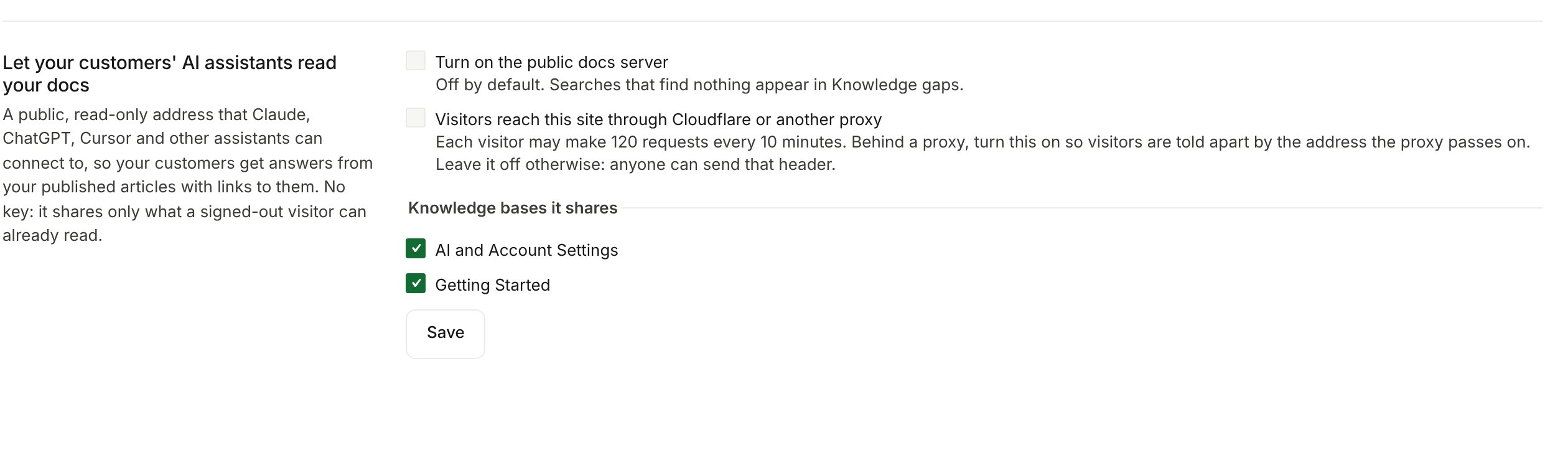
The public docs server is off by default; choose which knowledge bases it shares.
The route exists only while the server is on. While it is on, your Help Center's llms.txt lists it too.
Connect an assistant
- Claude Code:
claude mcp add --transport http <name> https://your-site.com/wp-json/wpbot-help/v1/docs(the screen gives you the exact command). - Claude.ai or ChatGPT: add the address as a custom connector.
- Share the address on your Help Center or in your developer docs, so customers can add it themselves.
Tools
| Tool | Input | What it returns |
|---|---|---|
search_docs | query (required), limit (1–20, default 8) | Matching articles with their address, a short summary and their section. Typos are corrected |
get_doc | url or slug | One article as Markdown |
list_topics | – | The knowledge bases, topics and article titles with their addresses |
The server also tells the assistant to search before answering, to answer from the articles, to link to the article it used, and to point to your Help Center when nothing fits.
What is shared
- Published articles without a password, in the knowledge bases you share.
- For an assistant without a WordPress sign-in: public articles only. Members-only articles follow their access labels when a signed-in user connects.
- Responses carry
X-Robots-Tag: noindex.
Limits
Each visitor may make 120 requests every 10 minutes (counted by a hashed address); the whole site allows 3,000 every 10 minutes. Above that the server answers HTTP 429 with Retry-After: 600. Developers can change both numbers with the filters qcld_wpbot_help_center/docs_rate and qcld_wpbot_help_center/docs_site_rate.
What you learn from it
- Searches that find nothing appear in ChatBot → Train as knowledge gaps ("AI assistant found nothing in your docs") and in the Help Center's Knowledge Gaps. Write the missing article and every assistant can use it at once.
- Help Center → Analytics has a From AI assistants section: searches, searches with no result and articles read through the docs server.
This closes the loop between Get found and Learn: AI assistants become a channel that sends customers to your articles, and their failed searches tell you what to write next.
Availability
In every edition, including WPBot Free. The Help Center must be turned on in AI / Settings → Help Center.
Was this article helpful?
Sorry about that. Get help another way:











