

Help Center MCP server: let AI assistants write your docs
On this page
The Help Center has a built-in MCP server. Claude Code, Claude Desktop and other MCP clients connect to it and can read your help center, write articles from your GitHub repository or product notes, and suggest changes, with nothing else installed on your site.
Address: https://your-site.com/wp-json/wpbot-help/v1/mcp
It speaks MCP over Streamable HTTP with JSON responses (initialize, ping, tools/list, tools/call). Every tool runs as the WordPress user who connected, with that user's rights.
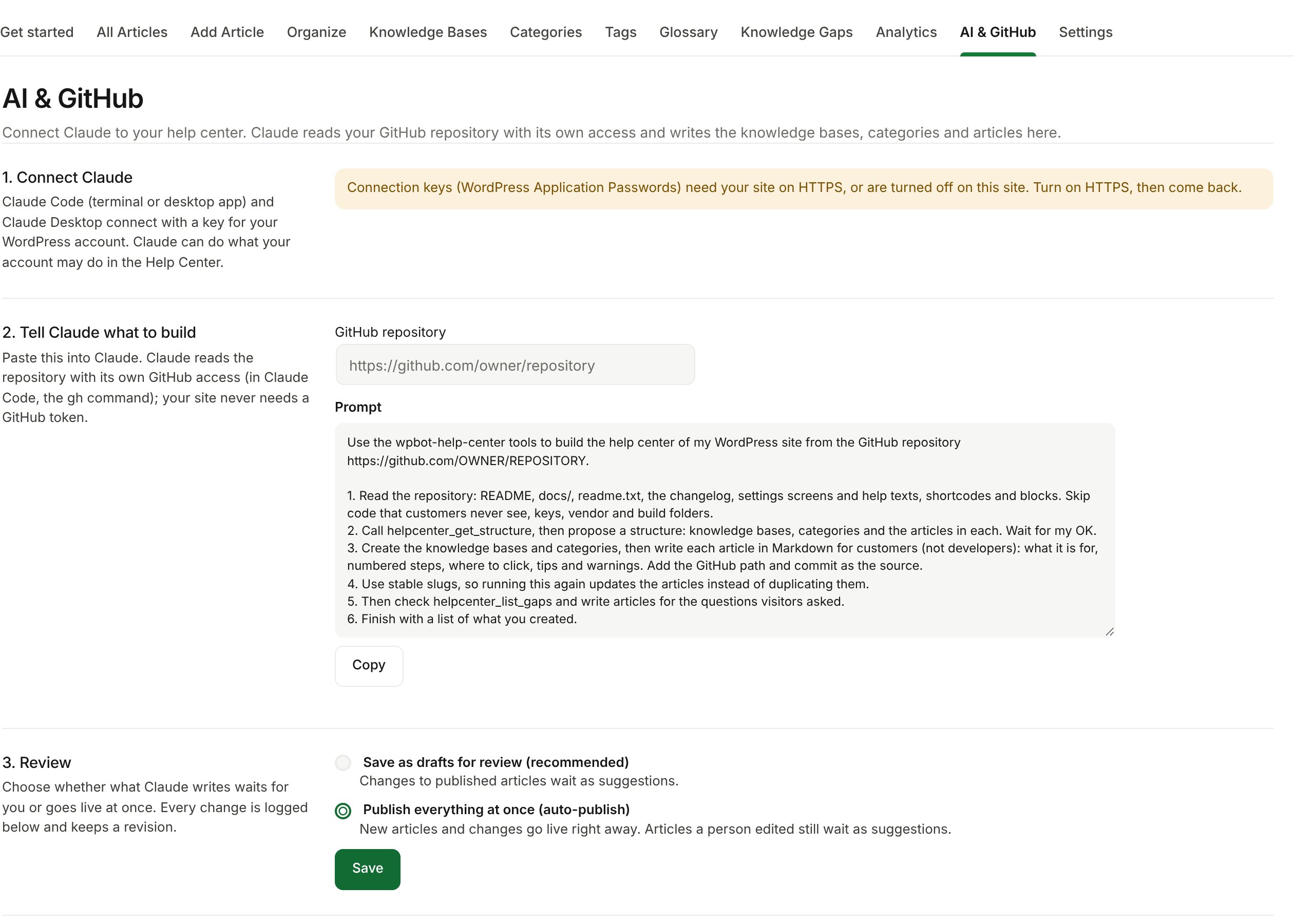
Help Center → AI & GitHub: connect Claude, tell it what to build and choose how its work is reviewed.
Connect Claude
- Open WPBot Pro → Help Center → AI & GitHub.
- Under 1. Connect Claude, click Create a connection key. WPBot creates a WordPress Application Password called "WPBot Help Center (Claude)" for your account. It is shown only once: copy it into Claude before you leave the page.
- Copy the ready command:
- Claude Code: a
claude mcp add --transport http wpbot-help-center …command with your key in anAuthorizationheader. Run it in a terminal. - Claude Desktop: a block for
claude_desktop_config.jsonthat connects throughmcp-remote(needs Node.js).
- Claude Code: a
- Restart Claude and ask it to list the
wpbot-help-centertools.
Under 2. Tell Claude what to build, enter your GitHub repository and copy the prompt. Claude reads the repository with its own GitHub access; your site never needs a GitHub token. You can see and revoke keys in your WordPress profile under Application Passwords.
Warning
If the screen says "Connection keys (WordPress Application Passwords) need your site on HTTPS, or are turned off on this site", Application Passwords are not available. Turn on HTTPS, or allow Application Passwords in your security plugin. See Connection keys need HTTPS or are turned off (Application Passwords).
Tools
| Tool | Writes | What it does |
|---|---|---|
helpcenter_get_structure | no | The whole help center: knowledge bases, the category tree, every article (title, slug, status, categories, order, source) and the publishing setting. Call it first |
helpcenter_search | no | Search articles by words in the title or text (query, limit up to 50) |
helpcenter_get_article | no | One article by slug, as Markdown |
helpcenter_upsert_knowledge_base | yes | Create or update a knowledge base, matched by slug |
helpcenter_upsert_category | yes | Create or update a category (can be nested with parent), matched by slug |
helpcenter_upsert_article | yes | Create or update an article, matched by slug: title, content (Markdown or HTML), excerpt, categories, knowledge_bases, tags, parent, order, source |
helpcenter_set_order | yes | Set the order of articles and categories |
helpcenter_list_gaps | no | Questions the chatbot or the help search could not answer: ideas for new articles |
helpcenter_propose_unpublish | yes | Suggest that the owner unpublishes an article; nothing is unpublished by the tool |
helpcenter_get_changes | no | The log of changes AI assistants made |
The same slug always updates the same item, so running a job again updates articles instead of duplicating them.
Markdown that becomes blocks
Articles written in Markdown are turned into blocks: headings from ##, paragraphs, lists (two levels), code, quotes, tables, images and rules. GitHub-style alerts become Help Center callouts:
> [!TIP]
> Turn on source links so answers send visitors to your product pages.
Raw HTML and unsafe links in Markdown are dropped. Do not repeat the title as a heading; the title is the page heading.
Review rules
Under 3. Review, the owner chooses what happens to Claude's work:
- Save as drafts for review (recommended): new articles are drafts; changes to published articles wait as suggestions.
- Publish everything at once (auto-publish): new articles and changes go live right away.
Either way, a change to an article a person edited waits as a suggestion, every change keeps a revision and appears under What Claude changed, and each user may make at most 600 writes an hour.
Test the connection with curl
curl -X POST https://your-site.com/wp-json/wpbot-help/v1/mcp \
  -u "your-username:xxxx xxxx xxxx xxxx xxxx xxxx" \
  -H "Content-Type: application/json" \
  -H "Accept: application/json, text/event-stream" \
-d '{"jsonrpc":"2.0","id":1,"method":"tools/list"}'| Answer | Meaning |
|---|---|
| A list of tools | It works |
| 401 "Connect with a WordPress Application Password" | No valid login arrived: wrong key, Application Passwords turned off, or the server removed the Authorization header |
| 403 "This WordPress account may not work on help articles" | The user lacks the right to edit help articles |
| 404 | The Help Center is off, or REST requests are blocked |
Availability
In every edition, including WPBot Free. The Help Center must be turned on in AI / Settings → Help Center.
Was this article helpful?
Sorry about that. Get help another way:











