

Click and scroll heatmaps
Open Site Insight → Heatmaps, or click Heatmap next to a page in Top pages on the Overview. Heatmaps use all tracked visits, recorded or not.
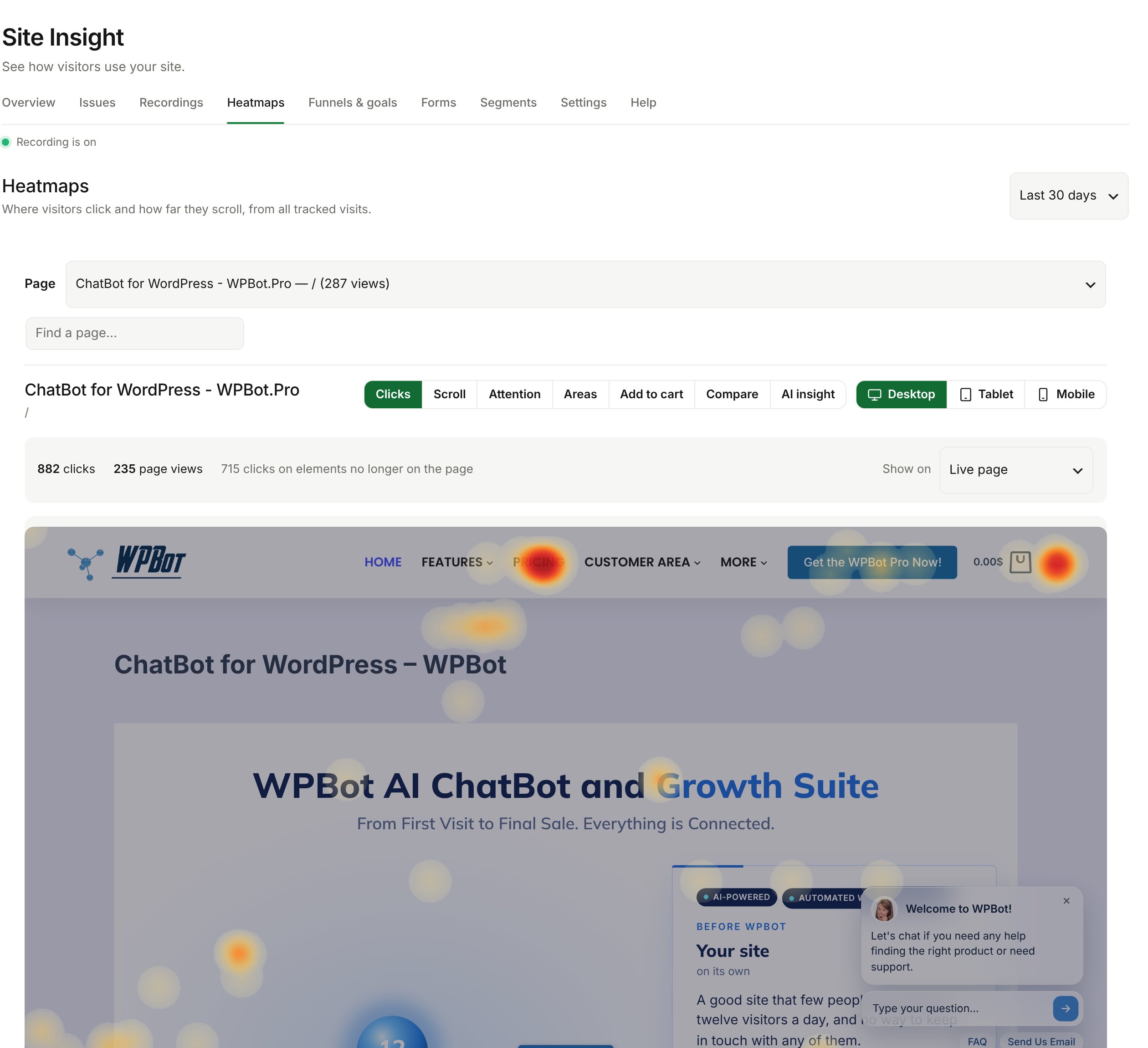
A click heatmap of the home page on desktop.
Choose what to see
- Pick the Date range at the top right.
- Choose the Page. The list shows each page with its views; type in Find a page… to filter it.
- Choose the Heatmap type: Clicks or Scroll (Site Insight Pro adds more views; see Attention, areas, add to cart, compare and AI insight heatmaps).
- Choose the Device: Desktop, Tablet or Mobile. Layouts differ, so each device has its own map.
- Under Show on, choose Live page (your page as it is now) or Recorded snapshot (the page as a visitor saw it). If your page cannot be shown in a frame, use the recorded snapshot.
Clicks
Colour shows how often each spot was clicked, from light yellow (few) to dark red (most). The bar above the page shows the number of clicks and page views, and how many clicks were on elements that are no longer on the page. Click Redraw if the page moved while it loaded.
Look for:
- Clicks on things that are not links, such as images, headings or icons. Visitors expect them to do something: make them links or change the design.
- Few clicks on your main button. Make it stand out, change its words or move it up.
- Clicks spread over many menu items. Visitors may not find what they want.
Scroll
The scroll map darkens the parts of the page that fewer visitors saw. Move over the page to read how many visitors reached that point. The Average fold line shows where the screen ended for an average visitor when the page opened.
Put your offer and main call to action above the point where most visitors stop.
Most clicked elements
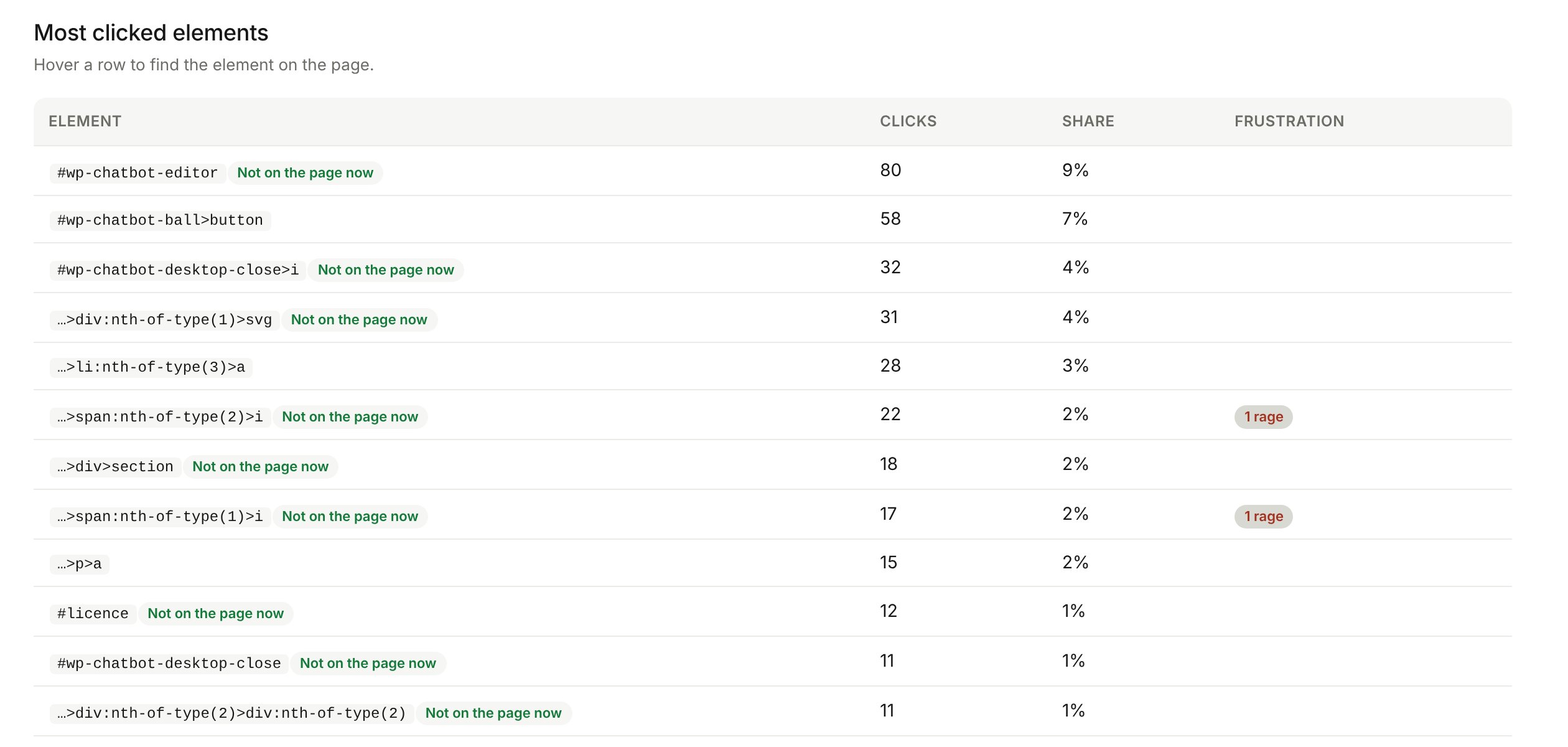
Most clicked elements with clicks, share and frustration per element.
Under the map, Most clicked elements lists each element with its Clicks, Share and Frustration (rage and dead clicks on it). Hover a row to find the element on the page. Not on the page now means the element was clicked in the past but is not on the current page, for example a chatbot window that only exists after it is opened, or a section you removed.
Use heatmaps to grow
- Check the heatmap of every new landing page or article after its first 100 views.
- Compare Mobile with Desktop: a button below the fold on phones can explain low mobile sales.
- After you change a page, use Compare (Site Insight Pro) to check the effect.
Availability
Click and scroll heatmaps, the device choice, live page or recorded snapshot and the most clicked elements are in every edition, including WPBot Free. The Attention, Areas, Add to cart, Compare and AI insight views and heatmaps per segment need Site Insight Pro (Professional or Master).
Was this article helpful?
Sorry about that. Get help another way:











