

AI Marketing settings
Open WPBot Pro → AI Marketing → Settings (under More).
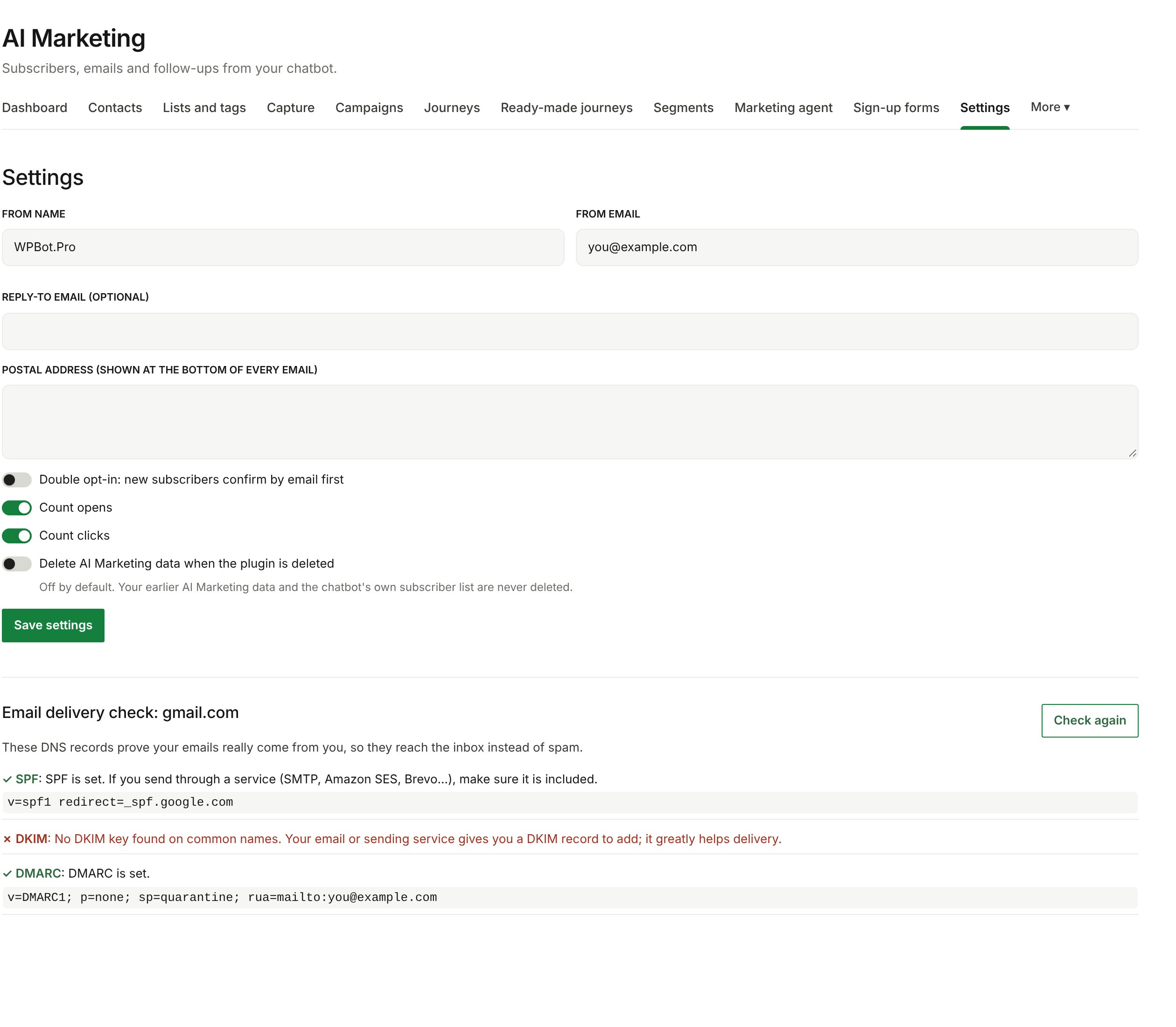
AI Marketing Settings and the email delivery check.
| Setting | What it does |
|---|---|
| FROM NAME | The sender name people see, for example your shop's name |
| FROM EMAIL | The sender address. Use an address on your own domain |
| REPLY-TO EMAIL (OPTIONAL) | Where replies go, if not to the from address |
| POSTAL ADDRESS (SHOWN AT THE BOTTOM OF EVERY EMAIL) | Anti-spam laws (CAN-SPAM, GDPR) expect it in marketing emails; the pre-send check warns when it is missing |
| Double opt-in: new subscribers confirm by email first | New sign-ups stay Waiting for confirmation until they click the link |
| Count opens | Adds a tracking image to count opens |
| Count clicks | Tracks clicks on links |
| Delete AI Marketing data when the plugin is deleted | Off by default. Your earlier AI Marketing data and the chatbot's own subscriber list are never deleted |
Click Save settings.
Email delivery check
Below the settings, the check for your FROM EMAIL domain shows SPF, DKIM and DMARC. See Deliverability basics: get your emails into the inbox.
Who can use AI Marketing
Access to AI Marketing, and to changing its settings, is set per role in WPBot Pro → Permissions. See Permissions: who can see, use and change each tool.
Availability
In every edition, including WPBot Free.
Was this article helpful?
Sorry about that. Get help another way:











