

Create and send an email campaign
On this page
Open WPBot Pro → AI Marketing → Campaigns. The list shows each Campaign with its subject, Status (Draft, Scheduled, Sending, Sent, Paused or Cancelled), Sent and Created, with Duplicate and Delete.
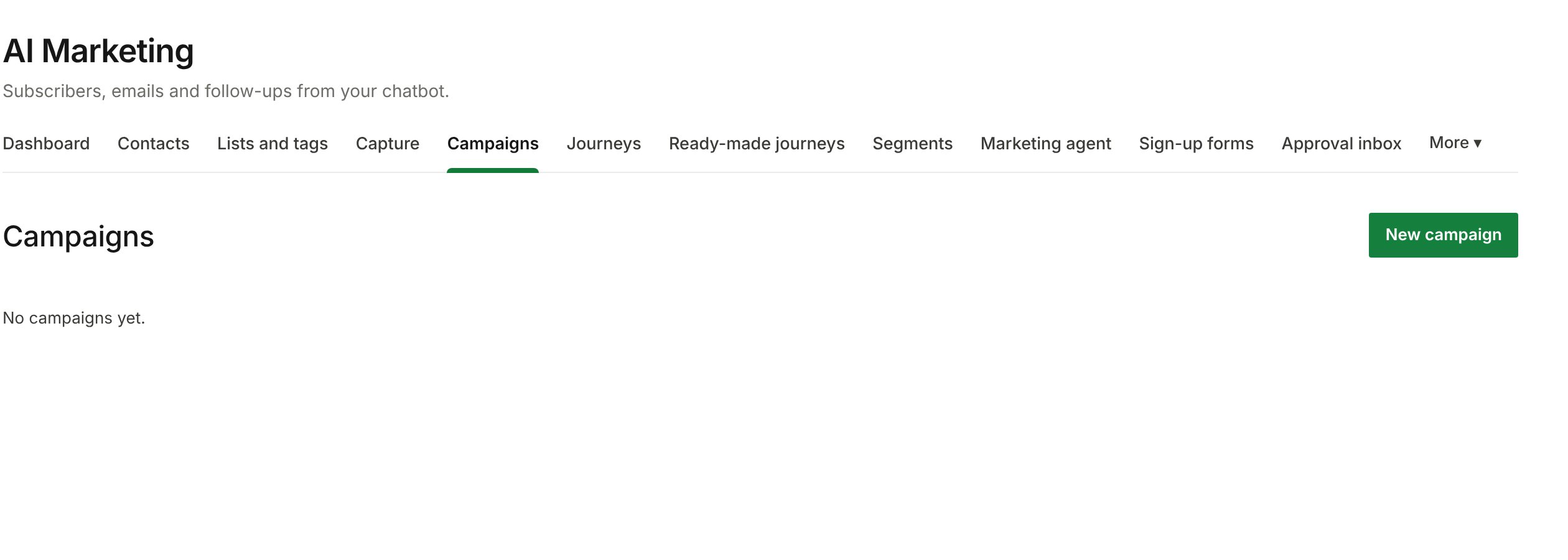
The Campaigns list.
Click New campaign to start.
1. Write it
| Field | What to enter |
|---|---|
| Name (only you see it) | For your list, for example "December offer" |
| Subject | The subject line; merge tags work here (see below) |
| Preview text | Shown next to the subject in most inboxes |
| From name / From email | Leave empty for the defaults from Settings |
| Start from a template | Newsletter, Announcement or Plain letter, or one of your own |
| Email content (HTML) | The email itself; Preview shows how it looks |
Merge tags: {first_name|there} puts in the first name, or "there" when it is unknown; {site_name} puts in your site's name.
With Master, Second subject to test (optional): half the people get each subject; the one more people open is the lesson for next time. Leave it empty and the AI writes one when automatic tests are on.
2. Choose who gets it
Who gets it: All subscribers, Subscribers in these lists, Subscribers with these tags, and Leave out people in these lists. With Master you can also choose a segment. The count shows how many people would get it.
Note
Only subscribed contacts are counted. Leads, prospects and people who unsubscribed never get campaigns.
3. Before you send
The pre-send check lists problems to fix. Errors block sending; warnings only warn:
- A missing subject, an empty email, or a missing postal address (anti-spam laws expect it in marketing emails).
- A subject that is too long for phones, in capital letters, or with several exclamation marks.
- Words that often send email to spam.
- Images without alt text, and links that do not start with
https://. - Missing preview text.
Type an address in Send a test to and click Send test. Check it on your phone too.
4. Send or schedule
- Send now sends to everyone counted.
- Or schedule for a date and time, then Schedule. The time is shown in your browser's time.
While it sends you can Pause, Resume or Cancel campaign (emails not sent yet will not be sent). The campaign shows Sent, Waiting, Opened, Clicked, Failed and Skipped (unsubscribed since).
Every email has a one-click unsubscribe link and the List-Unsubscribe headers that mailbox providers expect. Emails are sent from a queue that never sends the same email twice.
Campaigns that sell
Tip
One email, one goal, one link. Answer the question people asked the chatbot most this week, then link to the page that sells the answer. Send to the list that cares about the topic, not to everyone.
- With Master, AI can write the weekly newsletter and campaigns for new products, sale prices and items back in stock. See Automatic newsletter and campaigns for new products and sales.
- With Master, Reports → Revenue by email shows which campaign earned money.
Availability
Campaigns, templates, the pre-send check, test send, scheduling, pause and cancel are in every edition, including WPBot Free. Subject tests, segments as recipients and revenue per campaign are Master only.
Was this article helpful?
Sorry about that. Get help another way:











