# Embed the chatbot on another website
> Show your WordPress chatbot on a website where WPBot is not installed, such as a shop on another platform or a landing page, with two lines of code.
Source: https://www.wpbot.pro/help/dev-embed-chatbot-on-other-sites/
Section: Developers › Extending and templates
Updated: 2026-11-26
The embed code shows your WPBot chatbot on websites **where WPBot is not installed**: a shop on another platform, a static landing page or a web app. The chatbot keeps running on your WordPress site, with the same knowledge, AI settings and sessions.
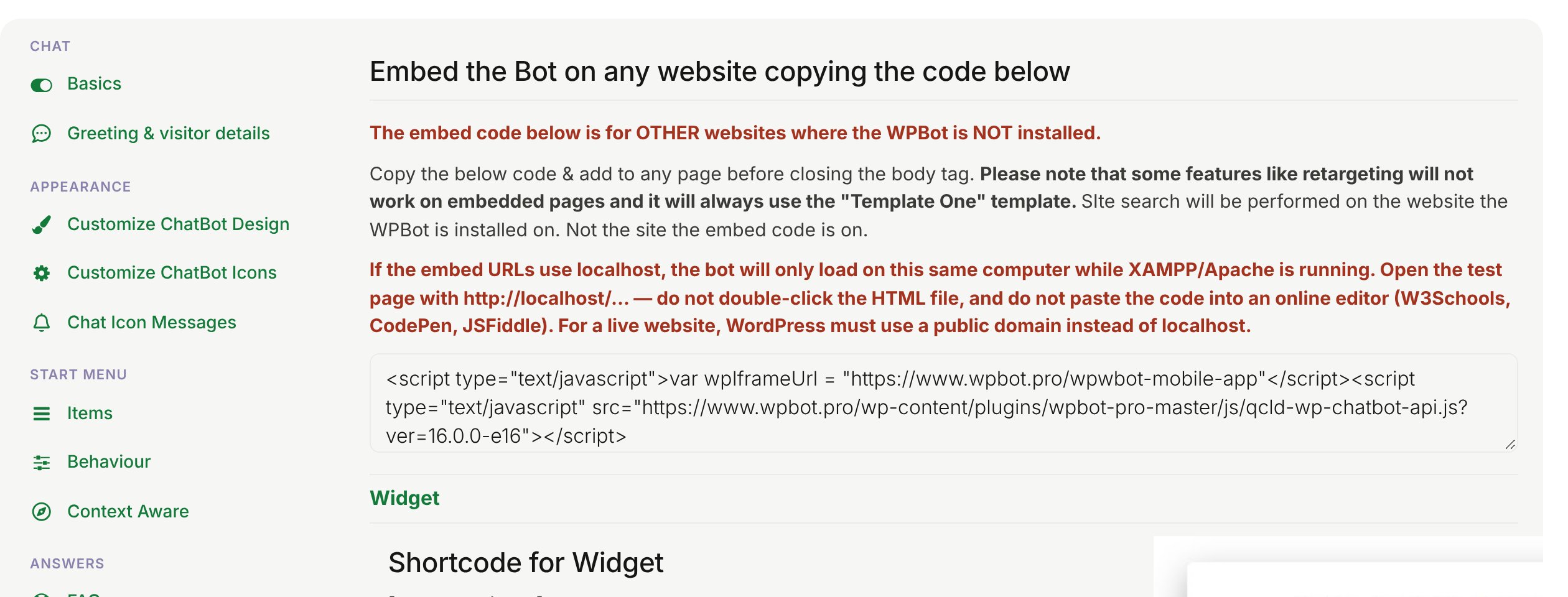
_The embed code in Embed & Click to Chat, ready to copy._
## Add it
1. Open **WPBot Pro → ChatBot** and choose **Embed & Click to Chat** .
2. Copy the code under **Embed the Bot on any website copying the code below** . It looks like this, with your own address:
```
```
1. Paste it into the other website's pages, just before the closing `` tag.
The code opens your chatbot from the page WPBot created for it ("wpwBot Mobile App", address `/wpwbot-mobile-app`), in a frame. Do not delete or unpublish that page.
## What to know
- **Do not add the code to your WordPress site itself.** On your own site the chatbot is already there; use the shortcodes instead ([Chatbot shortcodes](/help/dev-chatbot-shortcodes/)).
- **One look:** embedded chatbots always use the "Template One" template.
- **Some features do not work embedded,** such as retargeting (exit intent, scroll and timed messages).
- **Site search** searches your WordPress site, not the site where the code is.
- **Localhost does not work for visitors.** If your WordPress address is `localhost`, the chatbot loads only on that same computer. Use a site with a public domain.
## If the chatbot does not appear
| Symptom | Cause | Fix |
| --- | --- | --- |
| Nothing shows | The code is missing, or the other site's builder removed the script tags | Check the page source for `qcld-wp-chatbot-api.js` |
| An empty box or a "refused to connect" frame | A security header (`X-Frame-Options` or `Content-Security-Policy: frame-ancestors`) set by your server, CDN or a security plugin blocks the frame | WPBot removes WordPress's own frame header for this page; remove the extra header for `/wpwbot-mobile-app` in your server, CDN or security plugin |
| The chatbot shows an old version | Caching | Clear the cache of your WordPress site and its CDN |
| Works in WordPress, not on the other site | The other site blocks scripts from other domains (its own Content Security Policy) | Allow your WordPress domain in that site's `script-src` and `frame-src` |
## Updates
The script address carries the WPBot version (`?ver=…`). After you update WPBot, copy the code again so browsers get the new version.
## Availability
In every WPBot Pro edition. WPBot Free does not include the embed code.